· Jonathan Sorenson · Shopify Functions · 15 min read
How to Exclude Products from a Discount in Shopify: 6 Ready-Made Flows
Shopify discounts have no "exclude" option. Learn how to keep sale items, gift cards, subscriptions, free gifts and already-discounted products out of a product or order discount with Function Studio, with importable flows and the edge cases our support team sees every week.

Why “exclude products from discount” is a hard problem in Shopify
A merchant asks us this almost every week: “I want 15% off the whole store, but not on gift cards, not on new arrivals and not on items that are already on sale. Where is the exclude button?”
There is none. A native Shopify discount has an Applies to setting with three options: all products, specific collections, or specific products. You can say what a discount applies to. You cannot say what it must skip. That causes a list of well-known workarounds:
- The “everything except” collection. You build an automated collection with the rule “product tag is not equal to
no-discount” and point the discount at it. It works for one tag. It breaks as soon as the rule needs prices, selling plans, line properties or metafields, and it does nothing for order discounts. - Order discounts cannot exclude anything. A native “10% off your order” applies to every line, including the ones a second discount already reduced.
- Sale items are invisible to native discounts. Shopify discounts do not look at the compare-at price. A 20% code happily stacks on a product that is already 40% off, and it does so per market, where the sale status can differ.
- No priority between discounts. When two product discounts that cannot combine target the same line, Shopify keeps the larger one. A “final sale” discount of 40% loses to a 50% code every time.
- Discounts created outside your app cannot be changed. A discount made in the Shopify admin, in Klaviyo, or in another app runs on its own. Shopify did not release the Discount Allocator API, so no app can change how another discount is applied.
Shopify Functions solve this. A discount function receives every cart line with its product, variant, price, compare-at price, selling plan, properties, tags, collections and metafields, and returns the lines it wants to discount. Function Studio lets you build that logic as a flow, without code.
This article shows the six exclusion patterns we see most often, each as an importable flow. It ends with the edge cases from our support inbox.
New: exclude already-discounted items from an order discount

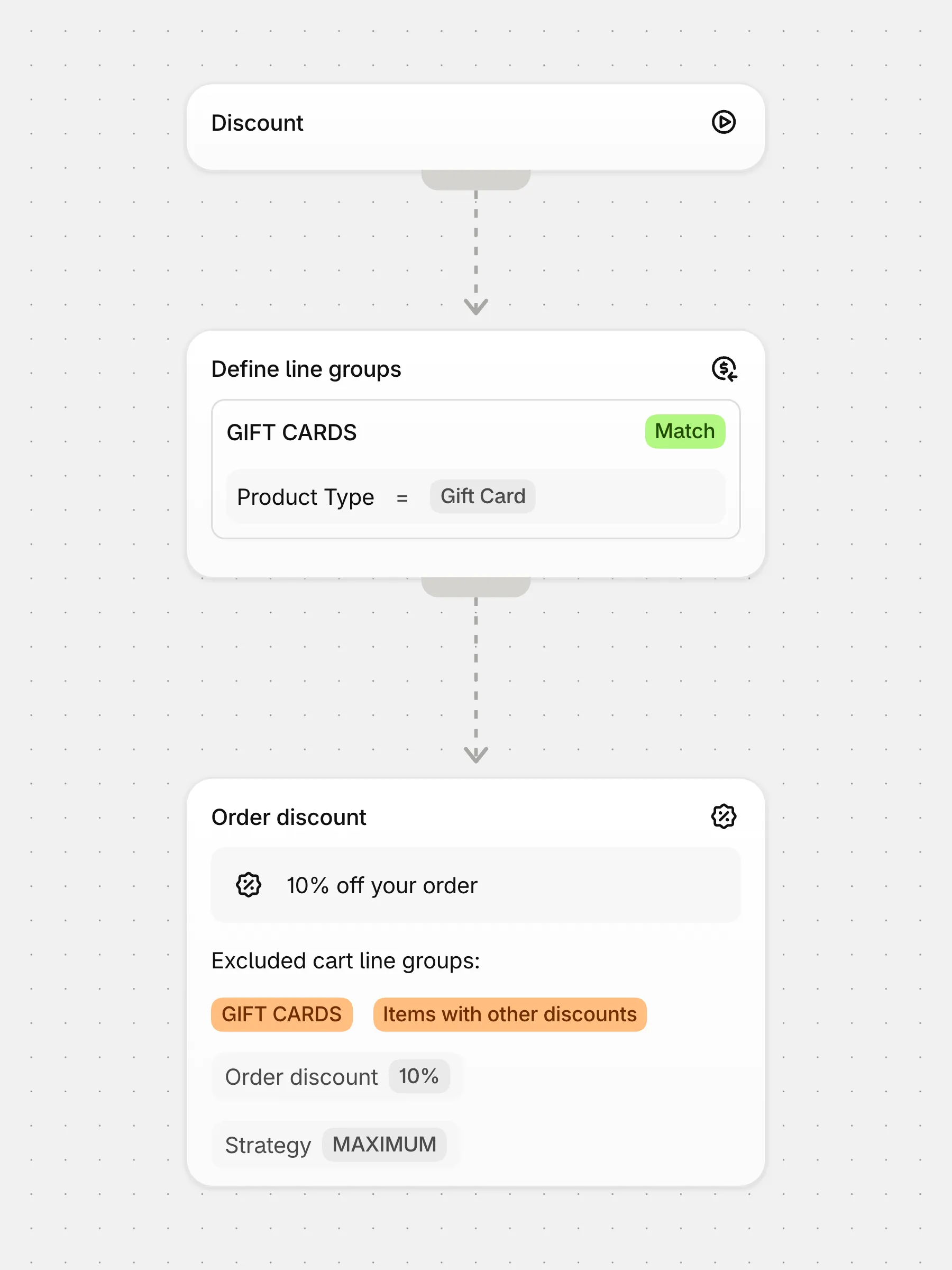
This is the one native Shopify cannot do at all, and the one merchants ask for most. The Apply order discount block in Function Studio now has a system group called Items with other discounts in its Excluded cart line groups field.
Select it, and the order discount skips every cart line that another discount already reduced. “10% off your order, but not on sale items from other discounts” becomes one checkbox. You do not need a Define Cart Line Groups block for this group.
How it works
Shopify runs all discount functions at the same time, on the same cart, before any discount is applied. A function cannot see the result of another function. To get around this, the Function Studio storefront runtime and its checkout block write the price of every cart line after item discounts into a cart metafield. The order discount function reads that metafield and compares it with the price it sees itself. A line whose synced price is lower than its own unit price was discounted by something else, and the function excludes it.
The group includes the discounts of other apps and the discounts you created in the Shopify admin, because the prices are read from the cart, not from the discount logic.
Setup
Add the block
In a discount function, add Apply order discount and set the value and the message.
Select the system group
Open Excluded cart line groups and select Items with other discounts.
Allow cart price sync
Click Allow cart price sync in the block settings and grant the access that Shopify asks for.
Enable the app embed
In the theme editor, enable the Promotion Runtime app embed under App embeds.
Add the checkout block
In the checkout editor, add the Dynamic content block and turn on Sync Cart Prices.
Test
Add a product that another discount reduces, then a full-price product. Only the full-price product gets the order discount.
The feature needs the Advanced plan. If the prices are not synced, for example because the app embed is off, no item is excluded and the order discount applies to all lines. The checkout block closes that gap: a change at checkout re-runs the function with the synced prices.
The same synced prices power two related features: the condition Cart Subtotal After Other Discounts, for a threshold that counts the discounts of other apps, and the Free Gift field Count prices after other discounts.
How exclusion works in Function Studio
Every other pattern in this article uses the same two blocks:
- Define Cart Line Groups selects cart lines with conditions. A group is a named filter, for example
ELIGIBLE ITEMS. The conditions can use product tags, collections, product type, vendor, SKU, variant, price, compare-at price, selling plan, line properties, cart attributes and metafields. - A discount block uses the group. The Product discount block has the field Apply to cart line groups: only the lines in the selected groups get the discount. The Apply order discount block has the opposite field, Excluded cart line groups: the lines in the selected groups are kept out of the order subtotal.
So “exclude product X” is “build the group of lines that are not X, and apply the discount to that group”. Two rules keep this simple:
- Prefer positive conditions. “Collections is one of Apparel AND Product Tags is not in
no-discount” is easier to reason about than a chain of negatives. - Know the two-valued logic. Conditions are true or false, never unknown. A line with no value passes an “is not” condition: a product without the
final_salemetafield counts as not final sale and stays eligible. That is normally what you want. Check it in the cart tester when it is not.
The field Condition matching on a group switches between Match and Don’t match. “Don’t match” turns the whole group into its complement, which is handy for “everything except the items in this list”.
Pattern 1: exclude tagged products and collections from a storewide discount

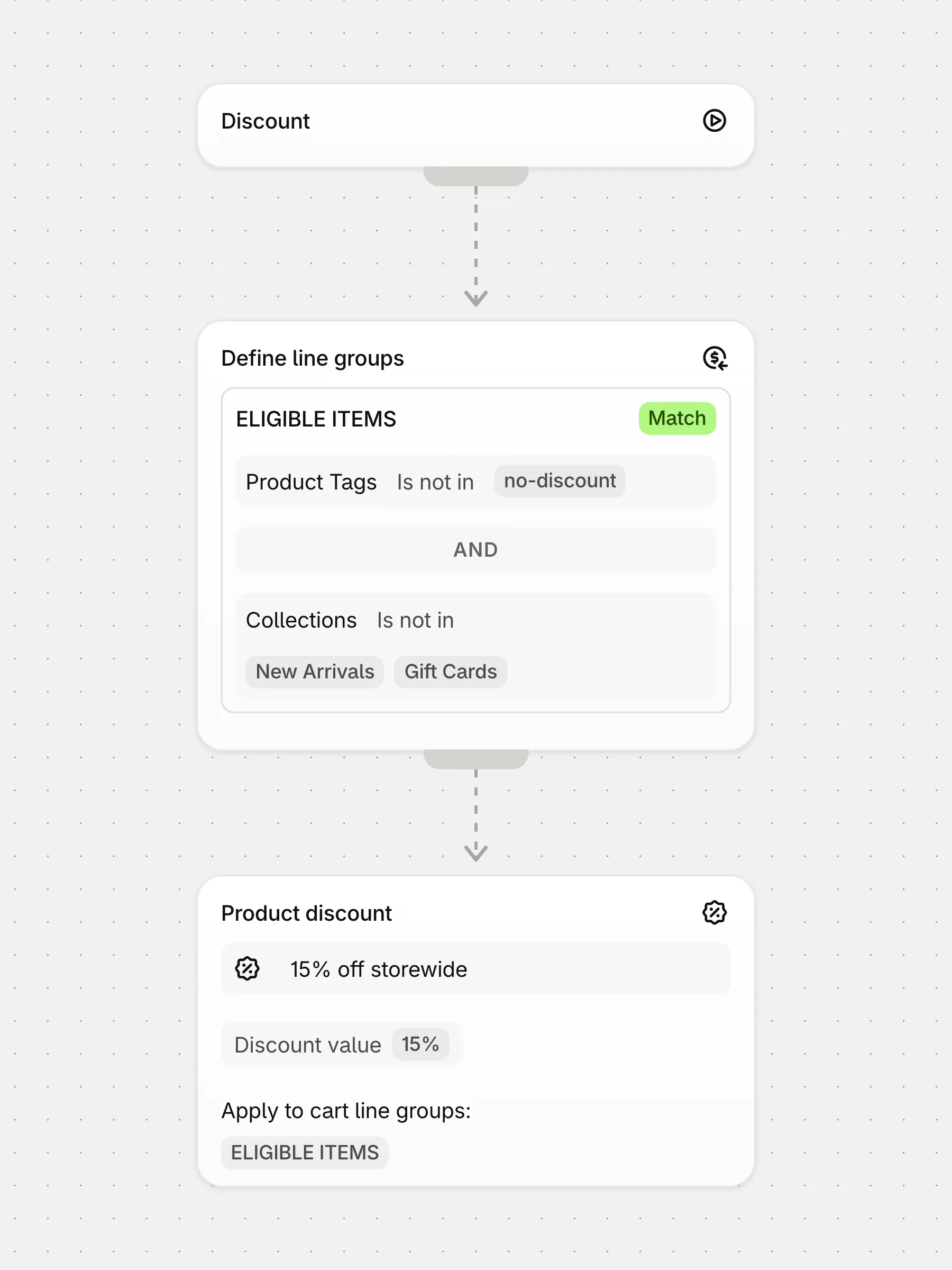
The classic case. The group ELIGIBLE ITEMS keeps every line whose product does not have the tag no-discount and is not in the collections New Arrivals or Gift Cards. The product discount applies 15% to that group.
Create the group
Add Define Cart Line Groups. Name the group ELIGIBLE ITEMS and keep Condition matching on Match.
Add the tag condition
Product Tags, operator Is not in, value no-discount. Several tags are comma-separated.
Add the collection condition
Collections, operator Is not in, select the collections to protect. The AND between the two conditions keeps only lines that pass both.
Apply the discount
Add Product discount, set 15%, and select ELIGIBLE ITEMS in Apply to cart line groups.
Tags are the easiest exclusion key to maintain: the marketing team tags a product and it drops out of every discount that uses the rule. Prefer tags, product type or a metafield over long lists of product IDs. A list of hundreds of variant IDs can hit the configuration size limit of the function.
Pattern 2: exclude gift cards

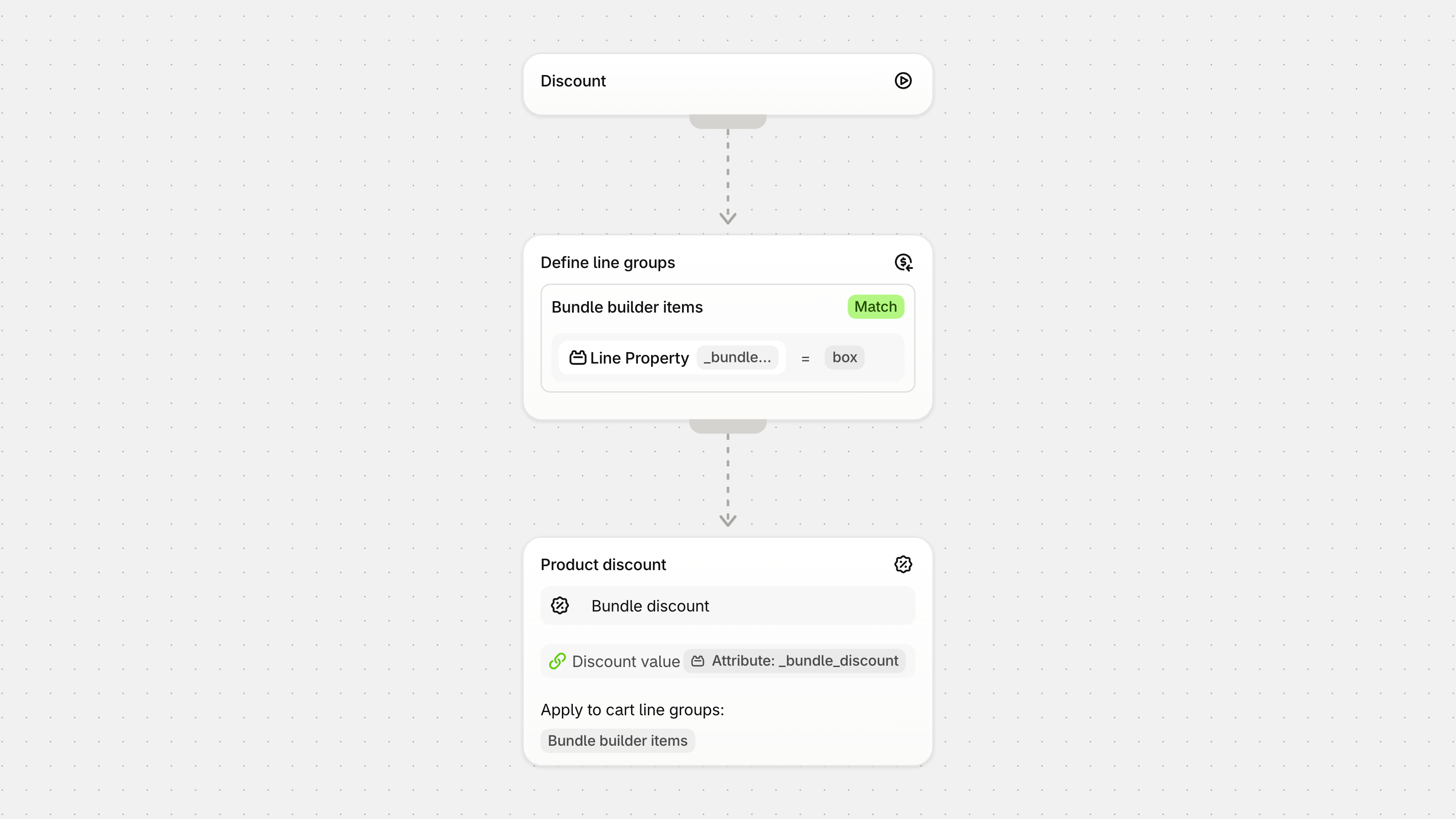
Gift cards are the one product you must never discount, and the one product people forget. Give the gift card products a product type (for example Gift Card), or pick them directly, and put them in a group. On a product discount, leave that group out of Apply to cart line groups. On an order discount, select it in Excluded cart line groups. The flow of the first section does exactly this, next to the Items with other discounts group.
Native Shopify discounts skip gift cards on their own. Do not rely on that for a function discount. Exclude them explicitly.
Pattern 3: exclude sale items (products with a compare-at price)

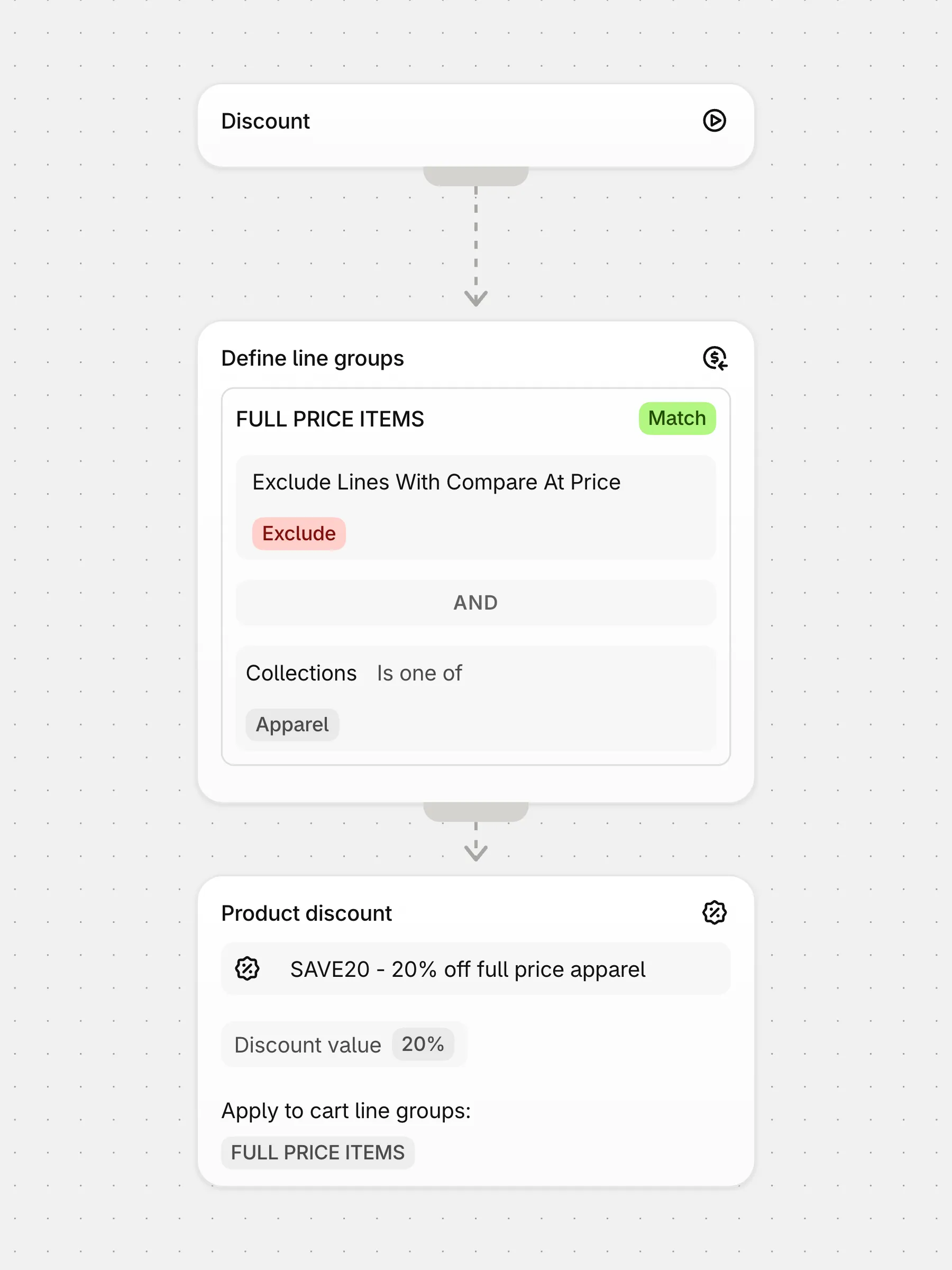
A code should apply to full-price items and skip the lines that are already on sale. The line group has the condition Exclude Lines With Compare At Price. It keeps a line only when its price is greater than or equal to its compare-at price. A line with no compare-at price is a full-price line and passes. A line with an old compare-at price that is lower than the current price also passes, so a stale compare-at value does not block the discount.
Create the group
Name it FULL PRICE ITEMS.
Add the sale condition
Select Exclude Lines With Compare At Price and leave it on Exclude. Switch it to Include only when you want the opposite group, the sale items.
Narrow it if needed
Add Collections is one of to keep the code inside one part of the catalog.
Apply the discount
Select the group in Apply to cart line groups of the product discount.
Two details that matter:
- Prices are per market. The function sees the price and the compare-at price of the customer’s market. A product that is on sale in one market and full price in another is handled correctly, something an automated collection cannot do.
- Line-level versus cart-level. The group skips sale lines and discounts the rest of the cart. If instead the code must be refused entirely when the cart holds any sale item, use the Reject Discount Codes block with a condition on the cart. It removes the code for the whole cart and shows a message.
Pattern 4: exclude subscription items

Subscription apps sell the same variant with a selling plan. A one-time purchase and a subscription of one product are two cart lines, and a discount often must apply to only one of them. The group ONE-TIME PURCHASES keeps the lines whose Selling Plan Name is blank.
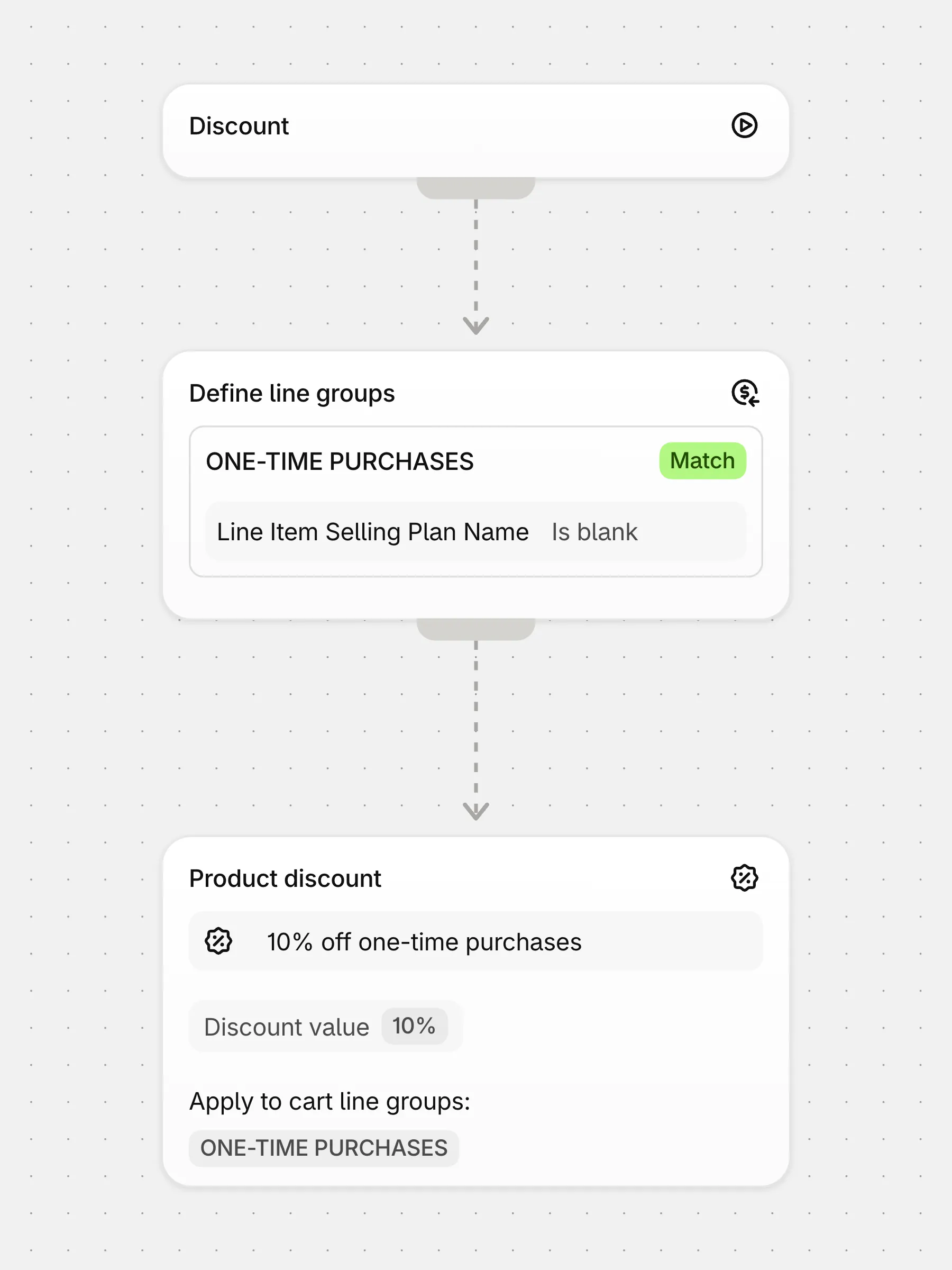
To do the opposite, discount subscriptions only, use Is Subscription Item is true, or Selling Plan is one of the plans you pick.
The selling plan fields are part of the cart-focused and discount-code function inputs. If your discount does not show them, it was created on an input without them. Export the flow, create a new discount, import the flow, add the condition before the first save, and swap the discounts.
Pattern 5: exclude the free gift line, not the whole product

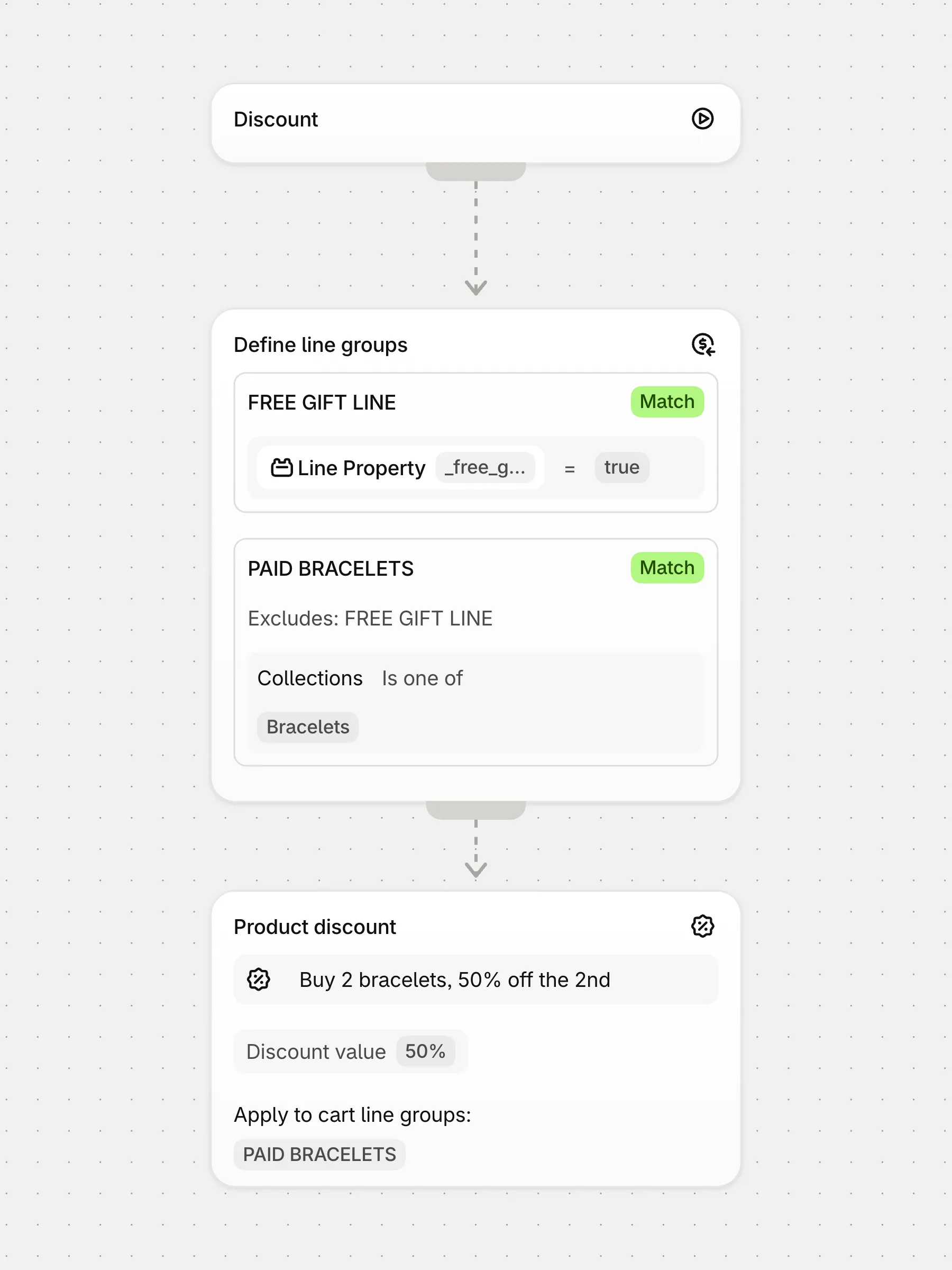
A gift-with-purchase adds a product to the cart. The same product can also be in the cart as a paid item. “Exclude the gift” must then exclude one line, not the product. Most themes and gift apps mark the gift line with a line property, for example _free_gift = true.
Mark the gift
Create the group FREE GIFT LINE with the condition Line Property _free_gift equals true.
Build the paid group
Create PAID BRACELETS with the collection condition, and select FREE GIFT LINE in Exclude items of. The units of the gift group are subtracted, even when gift and paid units share one cart line.
Apply the discount
Point the BOGO or the product discount at PAID BRACELETS.
Exclude items of and Source items are on the Advanced plan. Three things trip people up here:
- The theme must really set the property on the gift line. When the bracelet keeps getting the BOGO discount, check the cart JSON first.
- The order of the action blocks does not protect the gift line. A BOGO block placed after the gift block still claims the line unless the group excludes it.
- The cart tester does not add line properties on its own. Set the property on the test line to reproduce the storefront.
Pattern 6: protect “final sale” items from bigger discounts with a metafield

A 40% final-sale discount is set on specific variants. A 50% VIP code must not replace it. There is no priority setting in Shopify, so the VIP code has to skip those variants. A variant metafield custom.final_sale with the value 1 marks them. The group ELIGIBLE ITEMS keeps the running and training collections where the metafield is not 1. Variants without the metafield stay eligible.
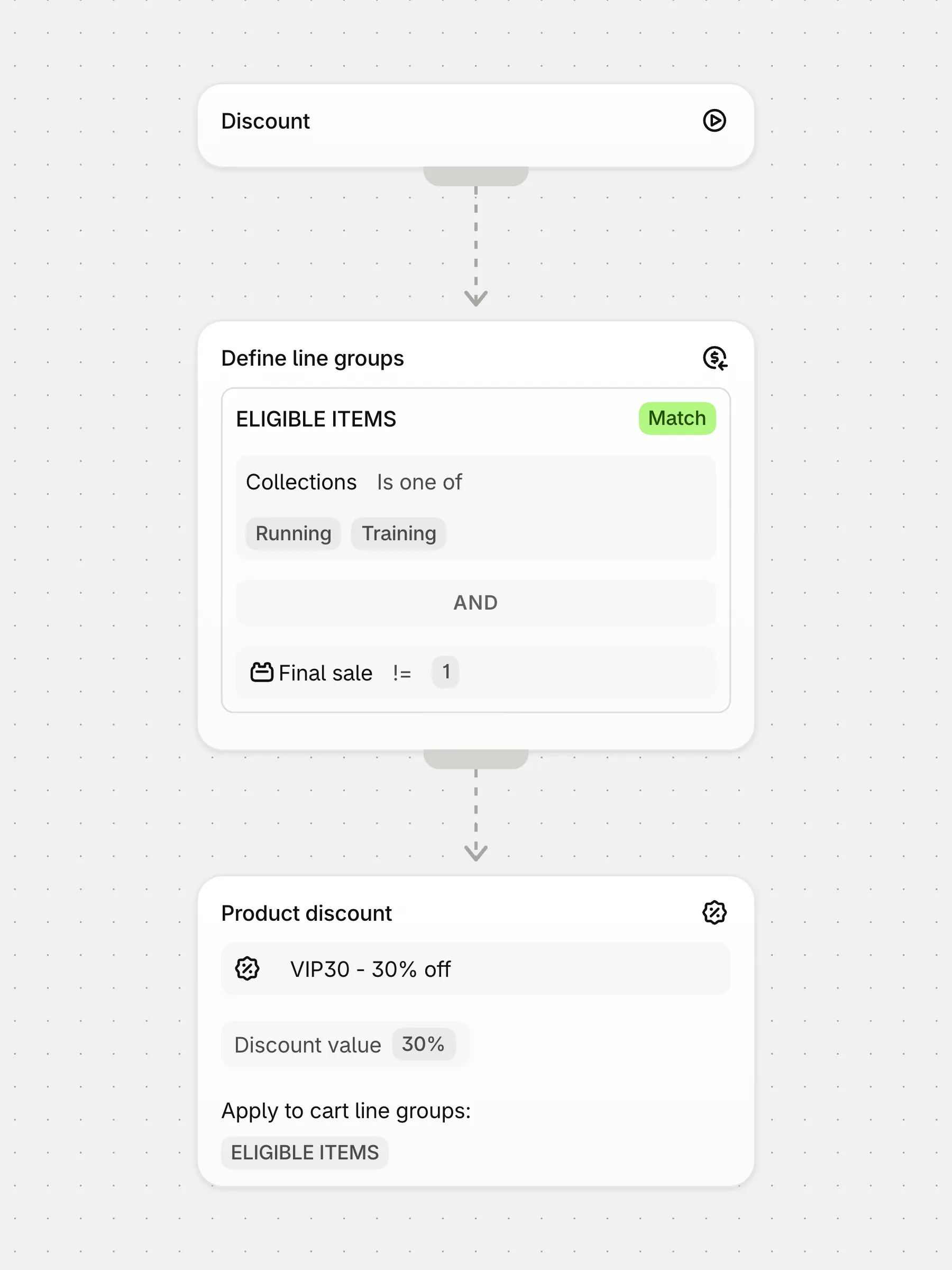
Two limits to know. A metafield that references a metaobject cannot be read by a function: use a boolean, a text or a number metafield, or a collection. And a code created in the Shopify admin cannot exclude by metafield, so the VIP code itself must be a Function Studio discount.
Exclusions in thresholds and tiers
Excluding a line from the discount is one thing. Excluding it from the amount that triggers the discount is another, and support gets this question just as often.
- Free gift thresholds. The Free Gift block has the field Does the gift count toward the threshold? with the options Yes - count the gift, Yes - count the gift (after discounts in this flow), No - never count the gift, and Count everything but the free unit. The last one is for a gift that is also a normal purchasable product.
- Tiers. The tiers of the Product discount block have Excluded cart item groups, so a “spend $150, get $50 off” tier can ignore gift cards or the gift line. The Define Tiers block scopes a tier to a group total, and its tier types Cart total - discounted items and Group total - discounted items drop the lines that a discount in the same flow already reduced.
- Other apps’ discounts. A threshold on the normal cart subtotal sees the prices before the discounts of other functions. Use Cart Subtotal After Other Discounts, or the Free Gift field Count prices after other discounts. Both need the cart price sync described in the first section.
Edge cases from the support inbox
These are the things that were not obvious to the merchants who wrote to us, in the order we see them.
- “The discount applies to everything.” The group is correct but Apply to cart line groups on the product discount is empty. An empty field means all lines. Select the group.
- “My exclusion does not work.” The old discount is still active next to the new one and keeps applying. Deactivate the old one while you test.
- A field is missing in the condition list. The function input is fixed when the discount is first saved. Line properties, selling plans, variant metafields and customer fields are not on every input. Export the flow, create a new discount, import the flow and add the condition before the first save. The app then picks an input that has the field.
- Two product discounts with different strategies in one function cause a checkout error. Keep one application strategy per function. Maximum applies one product discount; use All when the free gift and the percentage discount must both apply.
- Codes from Klaviyo, the admin or another app cannot be changed by Function Studio and cannot be given exclusions. Recreate them in Function Studio. Codes are generated in bulk on the Bulk Codes page and stay linked to one function.
- Only one product discount per line without combinations. When two discounts that do not combine hit the same line, the larger wins. Line item combinations are controlled with tags under Combinations on the discount form: both discounts must allow each other.
- Customers, not products. “Exclude distributor accounts” is a condition on the customer tag, not a group. Shopify cannot exclude a customer segment; build the inverse segment or use a tag.
- Sales channels. Automatic discounts apply on every channel except POS unless you turn POS on in the Shopify discount settings. That setting lives on the discount, not in the flow.
- Shipping discounts. “Free shipping except local delivery” is a group of delivery options by method name in the shipping discount block, not a cart line group.
- Resave after an app update. A fix in the code generator reaches an existing discount only after you open it and save it again.
Test before you activate
Open the cart tester
Add one line that must be excluded and one that must get the discount. Set line properties by hand.
Read the result
The excluded line must show no discount. For an order discount, the subtotal of the excluded line must not be in the discounted amount.
Check a real cart
For Items with other discounts and the after-other-discounts conditions, test on the storefront with the app embed enabled, then at checkout.
Activate
Activate the new discount, then deactivate the one it replaces.
Import the flows
Each flow in this article is a JSON file. In Function Studio, create a discount, click Import logic, select the file, and replace the placeholder collections, tags and metafield names with yours. Then save, test and activate.
- Exclude tagged products and collections
- Order discount: exclude gift cards and items with other discounts
- Exclude sale items
- Exclude subscriptions
- Exclude the free gift line
- Protect final-sale variants by metafield
The short versions of the first two live in the discount gallery: Exclude Products from Discount and Exclude Collections from Discount.