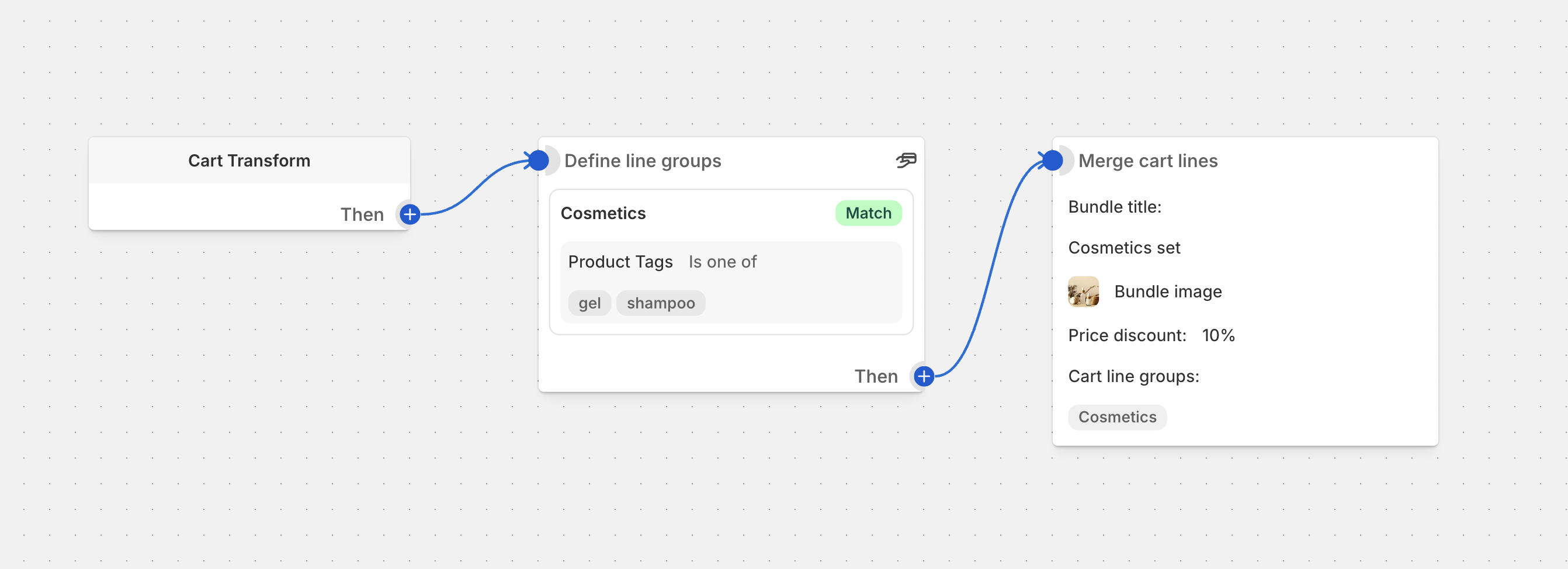
Cart Transform: Merge Lines Operation
Combine multiple cart line items into a single bundled product
Overview
The Merge Lines block combines multiple cart line items from selected groups into a single bundled product. This is the opposite of the Expand operation — instead of breaking a bundle apart, it takes separate items and merges them together.
- Build-your-own bundles — let customers select individual items that get merged into a single bundle at checkout
- Kit assembly — combine prerequisite items into a bundled kit product
- Multi-item promotions — merge qualifying items into a discounted bundle
- Bundle builder apps — integrate with apps that tag cart lines with bundle identifiers at runtime
When cart lines are merged, all items from the selected groups are combined into a single line item represented by a bundle product (parent variant). The customer sees one bundled line item in their cart instead of the individual items.
Two Modes
The Merge Lines block supports two configuration modes:
- Static mode — you select a fixed bundle product variant up front. All lines from the selected groups are merged into that one bundle. Best for simple, predictable bundles.
- Dynamic bundle mode — the bundle product variant is determined at runtime by reading cart line properties, cart attributes, or metafields. Best for bundle builder apps and headless storefronts where bundles are assembled dynamically per cart.
Setup
Open your cart transform function
Navigate to the function you want to edit in Function Studio
Add the Merge Lines block
Click Add Action and select Merge Lines from the action list
Configure the block
Set the options described in the Settings section below
Settings
Cart Line Groups
Required
Choose the cart line groups that should be merged into the bundle. Groups must be defined earlier in your function using a “Define Cart Line Groups” block. All lines from all selected groups are combined into the single bundle.
Dynamic Bundle
When turned off (default), a fixed bundle product variant is used — this is Static mode. When turned on, bundle grouping and the parent variant are determined at runtime. See Dynamic Bundle Mode below.
Bundle Product
Required in Static mode
Select the product variant that will represent the merged bundle in the cart. This is the “parent” product that replaces the individual items. The variant must exist and be published in your Shopify store.
Price Discount
Percentage discount to apply to the merged bundle (0–100%). Set to 0 for no discount.
This field can also be linked to a metafield, cart attribute, or line property. See Linked Fields.
Bundle Image
Optional
Custom image for the merged bundle product. Can be linked to a dynamic source.
Bundle Title
Optional
Custom display title for the merged bundle. Can be linked to a dynamic source.
Dynamic Bundle Mode
Dynamic bundle mode lets a single Merge Lines block handle any number of distinct bundles in the cart at runtime. Instead of merging all lines into one fixed bundle, the block reads a field on each cart line to decide which lines belong together.
When to Use Dynamic Mode
- Your storefront or a bundle builder app sets line properties like
_bundle_idon each cart line - Multiple different bundles can exist in the same cart simultaneously
- The parent product variant varies from bundle to bundle and cannot be known ahead of time
Enabling Dynamic Mode
Toggle Dynamic bundle on in the block settings. The static Bundle Product variant picker is replaced by the dynamic bundle settings below.
Bundle ID Source
Required
Link this field to a cart attribute, line property, or metafield whose value groups cart lines into bundles. Lines that share the same resolved value are merged together. Lines where this field is empty or unresolvable are skipped.
Parent Variant Resolution
Controls how the parent (bundle product) variant ID is determined for each bundle group. Choose one of two modes:
Field Contains Variant ID
The field linked in “Parent variant source” resolves directly to a Shopify variant ID (e.g., gid://shopify/ProductVariant/123456). This value is used as the parent variant.
Field Marks the Parent Item
The field linked in “Parent variant source” is a boolean marker. The line within the bundle group where this field’s value is "1" or "true" is treated as the parent line — its product variant is automatically used as the bundle’s parent variant ID.
Parent Variant Source
Required
Link this field to the cart attribute, line property, or metafield that holds either the variant ID or the parent marker, depending on the resolution mode chosen above.
Expected Component Count
Optional
Enter the number of items you expect to share the same bundle ID to form a complete bundle. If the actual number of lines does not match, that entire bundle group is skipped. Leave blank to merge any group regardless of size.
Tip
Use expected component count to guard against incomplete bundles being merged prematurely. For example, set to 5 if a valid bundle always contains exactly 5 items.
How Dynamic Bundles Are Processed
Read cart lines
The block reads all cart lines from the selected groups
Group by bundle ID
Each line’s Bundle ID source field is resolved. Lines with the same value are placed into the same group
Skip incomplete groups
Lines with an empty or unresolvable bundle ID are ignored. If Expected component count is set and the group does not match, the group is skipped
Resolve parent variant
The parent variant ID is resolved for each group according to the selected resolution mode
Merge
Each qualifying group becomes one merged bundle in the cart
Linked Fields
Three fields on the Merge Lines block can be either typed as a static value or linked to a dynamic source (metafield, cart attribute, or line property).
Note
Linked fields are gated behind the Advanced plan. The Dynamic bundle mode fields (Bundle ID source, Parent variant source) are link-only fields and always require an Advanced plan.
When a field is linked, a link icon and badge show which source it is connected to. Clicking the edit button lets you change the linked field. Clicking the unlink button removes the link and restores the static input.
Price Discount
By default, type a static percentage (0–100). Alternatively, link to a numeric metafield, cart attribute, or line property. At runtime, the discount percentage is read from the linked field for each bundle.
Bundle Title
By default, type a static title. Alternatively, link to a string metafield, cart attribute, or line property. Useful when each bundle should display a title set by your storefront or app.
Bundle Image
By default, provide a static image URL via the image picker. Alternatively, link to a string field containing an image URL. The URL is resolved at runtime and used as the bundle’s line item image.
How Merge Works
When the function runs, it collects all cart lines from the selected groups and replaces them with bundled line items:
- All cart lines matching the selected groups are collected
- Each line’s quantity is preserved as-is
- In static mode, all collected lines are replaced by one bundle line item
- In dynamic mode, lines are grouped by their resolved bundle ID, each group becoming its own bundle
- If a price discount is configured, it is applied as a percentage decrease to each bundle’s total
- Optional image and title override the default bundle product presentation
Quantities
Each merged cart line retains its original quantity. For example, if a group contains a T-shirt (qty 2) and a Cap (qty 1), the merge operation includes both items with their respective quantities inside the bundle.
Pricing
The bundle’s price is derived from the sum of the original prices of the merged cart lines:
- No discount (0%) — bundle price equals the sum of original item prices
- With discount (e.g., 10%) — bundle price = total of original prices minus 10%
Examples
Build-Your-Own Bundle (Static)
A customer picks 3 items from a “Build Your Bundle” collection, and they get merged into a single bundle product with a 15% discount.
Create a cart line group
Add a “Define Cart Line Groups” block with group name BUNDLE_PICKS that matches items from the bundle collection
Add the Merge Lines block
Set Cart Line Groups to BUNDLE_PICKS, select your “Custom Bundle” variant as the Bundle Product, set Price Discount to 15, and optionally set a Bundle Title and Bundle Image
Result
The 3 individual items are replaced by a single “Your Custom Bundle” line item with a 15% discount applied
Starter Kit Assembly (Static)
When a customer adds a laptop, case, and charger to their cart, merge them into a “Starter Kit” bundle.
Create a cart line group
Add a “Define Cart Line Groups” block with group name KIT_ITEMS that matches the laptop, case, and charger variants
Add the Merge Lines block
Set Cart Line Groups to KIT_ITEMS, select your “Laptop Starter Kit” variant, and set Price Discount to 0
Result
Individual items are consolidated into a single “Laptop Starter Kit” line item
Multi-Group Meal Deal (Static)
Merge items from multiple groups — a main course group and a sides group — into a single “Meal Deal” bundle.
Create cart line groups
Add two “Define Cart Line Groups” blocks — MAIN_COURSE for main course items and SIDES for side dish items
Add the Merge Lines block
Set Cart Line Groups to both MAIN_COURSE and SIDES, select your “Meal Deal” variant, set Price Discount to 20, and set Bundle Title to Meal Deal
Result
All items from both groups are merged into one “Meal Deal” bundle with a 20% discount
Bundle Builder App Integration (Dynamic)
A bundle builder app on your storefront lets customers assemble custom bundles. The app sets _bundle_id and _is_bundle_parent line properties on cart lines.
Create a cart line group
Add a group that captures all bundle lines (e.g., by matching a tag or line property indicating they are part of a bundle)
Configure the Merge Lines block
Turn on Dynamic bundle. Link Bundle ID source to the line property _bundle_id. Set Parent variant resolution to “Field marks the parent item”. Link Parent variant source to _is_bundle_parent. Set Price Discount to 10
Result
Each distinct _bundle_id value becomes its own merged bundle. The parent line’s product variant becomes the bundle’s parent variant. Each bundle receives a 10% discount
Fixed-Size Bundle Validation (Dynamic)
Your storefront sells pre-configured 3-item bundles. Each bundle must have exactly 3 components or it should not merge.
Create a cart line group
Add a group capturing all bundle-tagged lines
Configure the Merge Lines block
Turn on Dynamic bundle. Link Bundle ID source to the field holding the bundle ID. Set Parent variant resolution to “Field contains variant ID”. Link Parent variant source to the field holding the parent variant GID. Set Expected component count to 3
Result
Only bundle groups with exactly 3 lines are merged. Groups with fewer or more lines are left as individual items
Best Practices
Planning Your Merge Strategy
- Decide which items should be mergeable and create appropriate cart line groups
- Use Function Studio conditions to only run the merge when certain criteria are met
- Test with different cart configurations to verify correct grouping
Bundle Product Setup (Static Mode)
- Create a dedicated product variant to represent the bundle
- Set appropriate product images and descriptions for the bundle variant
- Consider inventory management — the bundle variant typically should not track inventory if the individual components do
Dynamic Bundle Setup
- Work with your storefront developer or bundle builder app documentation to understand which line properties or attributes are set on cart lines
- Use Expected component count to guard against incomplete bundles being merged prematurely
- Test with carts containing multiple simultaneous bundles to confirm each group resolves independently
Pricing Strategy
- Use percentage discounts to incentivize bundles over individual purchases
- Set 0% discount if the bundle is purely for presentation and organization
- When using linked fields for the discount, ensure the linked field always resolves to a valid number between 0 and 100
Customer Experience
- Use meaningful bundle titles so customers understand what they are purchasing
- Provide a bundle image that represents the combined items
- The total price reflects the bundle pricing, but individual component prices are not visible to customers
- Test the checkout experience with merged bundles
Important Considerations
Warning
Shopify rejects merge operations if any of the cart lines being merged have a selling plan (subscription) attached. Make sure your groups exclude subscription items.
Note
Linking Price Discount, Bundle Title, or Bundle Image to a dynamic source requires the Advanced plan. The Dynamic bundle mode fields are link-only and always require the Advanced plan.
Store Requirements
- The bundle product variant must exist and be published in your store (static mode)
- In dynamic mode, the parent variant ID is resolved at runtime — ensure all possible variants are published
Cart Behavior
- All individual items from the selected groups are replaced by a single bundle line item per resolved group
- Original item quantities are preserved within the merge operation
- Cart totals reflect the bundle pricing (with any configured discount)
- Customers see one line item per bundle
- Individual component prices are not visible to customers
Function Flow
- Cart line groups must be defined before the merge block
- Once items are merged, subsequent blocks targeting the original individual items will not find them
- Place the merge block after group definitions but before discount blocks
Troubleshooting
Merge Not Working
- Check your groups — make sure the cart line groups are defined correctly before the merge block
- Verify bundle variant — in static mode, ensure the bundle product variant exists and is published
- Check group contents — verify that your groups actually contain cart lines (empty groups cause the merge to skip)
Bundle Not Appearing
- Check group matching — verify your cart items match the group conditions
- Review bundle product — ensure the bundle product variant is available and not archived
- Check selling plans — merge is rejected if any cart line has a selling plan attached
Dynamic Bundle Not Grouping Correctly
- Check the Bundle ID source — confirm the linked field is actually being set on the cart lines by your storefront or app
- Check line property key spelling — keys are case-sensitive (
_bundle_idand_Bundle_Idare different) - Verify parent marker value — in “Field marks the parent item” mode, the parent field must resolve to
"1"or"true" - Check component count — if Expected component count is set and the group does not match, it is silently skipped. Try removing the count restriction temporarily
Tip
If dynamic bundles are not merging, try removing the Expected component count restriction temporarily to isolate whether the issue is with grouping or with count validation.
Pricing Issues
- Verify discount range — confirm the percentage is correct
- Check linked discount field — if linked, confirm the field resolves to a numeric value at runtime
- Check for conflicts — ensure no other blocks are modifying the same cart lines after the merge
Cart Display Issues
- Clear your cart — remove test items and try again with a fresh cart
- Check the bundle product — ensure the bundle product has proper images and titles in Shopify
- Review bundle settings — verify the optional title and image are correct