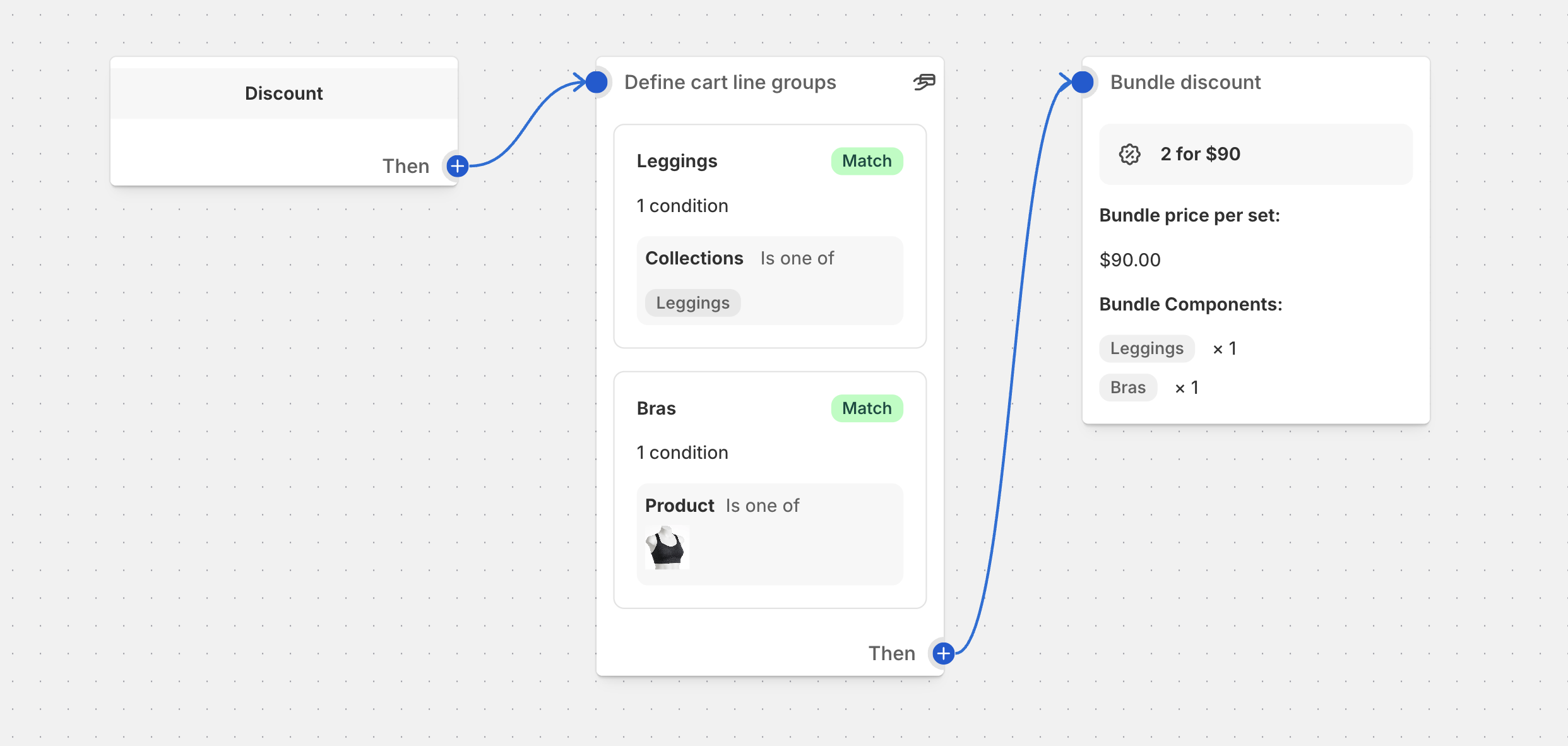
Bundle Discount Block
The Bundle Discount block allows you to create promotional offers where customers get discounts when they purchase specific combinations of products
Overview
The Bundle Discount block allows you to create promotional offers where customers get discounts when they purchase specific combinations of products together. This action is perfect for cross-selling complementary products, moving inventory, and increasing average order values through strategic product bundling.
Unlike simple product discounts that apply to individual items, bundle discounts require customers to have specific quantities of different product groups in their cart to qualify for the promotional pricing.
When to Use Bundle Discounts
Use the Bundle Discount block when you want to:
- Cross-sell complementary products: Encourage customers to buy related items together (e.g., laptop + mouse + keyboard)
- Create value packages: Offer better pricing when customers purchase complete sets
- Clear inventory: Bundle slow-moving items with popular products
- Increase average order value: Motivate customers to add more items to qualify for bundle savings
- Seasonal promotions: Create holiday or event-specific product combinations
How Bundle Discounts Work
Bundle discounts evaluate the customer’s cart to determine if they have the required quantities of each bundle component. When all requirements are met, the discount is applied using one of two pricing methods:
- Component-based pricing: Apply individual discount percentages to each bundle component
- Set pricing: Charge a fixed total price for one complete bundle set
Important: Customers must have ALL required bundle components in their cart for the discount to apply.
Configuration Guide
Step 1: Add the Bundle Discount Block
- In your function flow, click Add Action
- Select Bundle Discount from the discount actions list
- The action block will appear in your flow
Step 2: Basic Settings
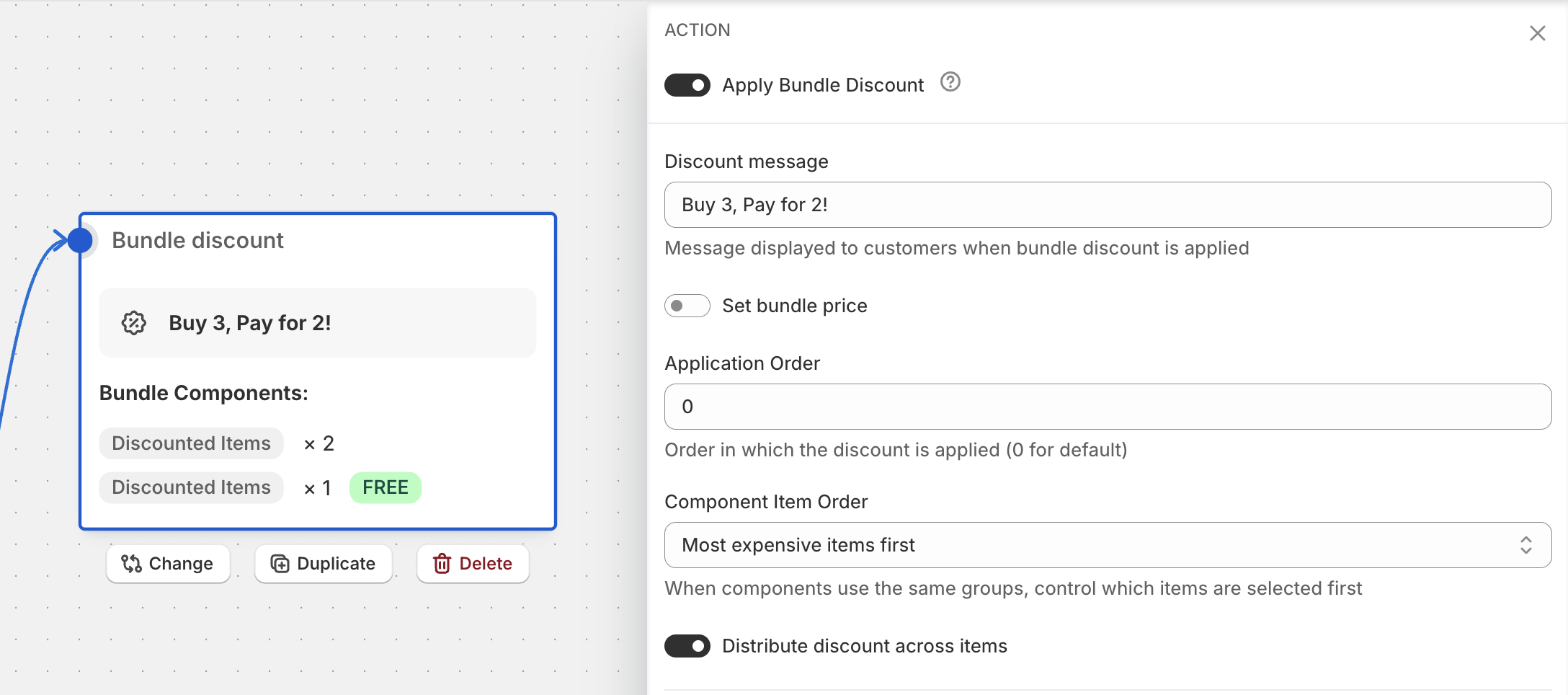
Discount Message
- Purpose: The message customers see when the bundle discount is applied
- Location: Displays in cart and checkout pages
- Best Practice: Use clear, engaging language like “Bundle Deal: Complete Office Setup” or “Holiday Bundle Savings”
- Example: “Back to School Bundle - Save when you buy together!”
Pricing Mode Selection
Choose between two pricing strategies:
Component Discount Mode (Default)
- Apply individual discount percentages to each bundle component
- Gives you precise control over which items get discounted and by how much
- Flexible for different product margins
Set Bundle Price Mode
- Charge a fixed total price for one complete bundle set
- Simpler for customers to understand
- Better for value-focused promotions
Application Order
Useful when you have multiple bundles and you need to give priority to some of them. Lower values (i.e. 1) mean higher priority. Bundles with higher priority are evaluated first.
Component Item Order
- No ordering (default) - bundle components are distributed in the order that they appear in the cart
- Cheapest items first - cheapest item(s) will be selected as the first bundle component. So if you’ll set a discount for the first component - it will be applied to the cheapest item.
- Most expensive items first - most expensive item(s) will be selected as the first bundle component. So if you’ll set a discount for the first component - it will be applied to the most expensive item.
Step 3: Configure Bundle Components
Each bundle requires at least one component. Components define which products and quantities are needed for the bundle.
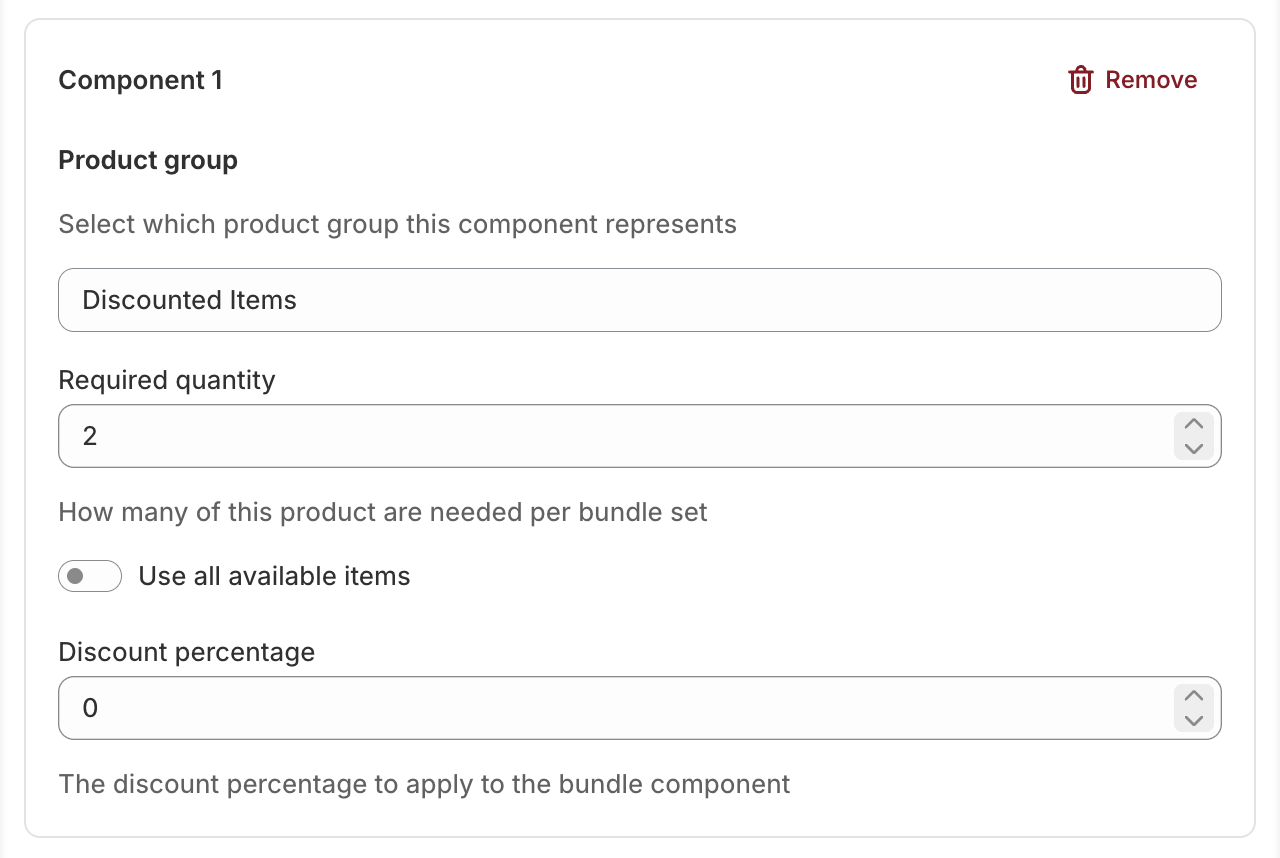
Adding Components
- Click Add Component to create a new bundle requirement
- Configure each component with the required settings
- Add as many components as needed for your bundle
Component Settings
Product Group
- Purpose: Specifies which products qualify for this bundle component
- Requirement: You must first create product groups using the “Define Cart Line Groups” action
- Example: Select “LAPTOPS” group for computers, “MICE” group for computer mice
- Tip: Use descriptive group names that clearly identify the product category
Required Quantity
- Purpose: How many items from the product group are needed per bundle set
- Range: Must be at least 1
- Example: Set to 1 if customers need one laptop, set to 2 if they need two accessories
- Important: This is per complete bundle set
Use All Available Items
- Purpose: Instead of a fixed quantity, the component includes ALL matching items in the group
- Behavior: Replaces the Required Quantity field — the bundle consumes every item from the group, however many the customer has
- Example: “Buy a coffee machine, get 20% off all coffee beans in your cart” — no matter whether the customer adds 1 bag or 10
Minimum Quantity (Use All Available Items Only)
- Purpose: How many items from the group must be in the cart before the “take all” behavior kicks in
- Range: Must be at least 1 (default: 1)
- Behavior: If the cart contains fewer items than the minimum, the component is not satisfied and the bundle does not apply. Once the minimum is reached, ALL matching items are included — not just the minimum
- Example: Set to 3 to require at least 3 bags of coffee beans; with 2 bags no discount applies, with 5 bags all 5 are discounted
Discount Percentage (Component Discount Mode Only)
- Purpose: The discount percentage applied to this specific component
- Range: 0-100%
- Optional: Leave blank if this component shouldn’t be discounted
- Example: 15% off laptop, 25% off accessories
Step 4: Set Pricing (Set Bundle Price Mode Only)
Bundle Price per Set
- Purpose: The total price customers pay for one complete bundle set
- Currency: Displayed in your store’s currency
- Calculation: System automatically determines individual discounts to reach target price
- Example: Set $199 for a laptop bundle normally worth $249
Pricing Mode Details
Component Discount Mode
In this mode, you set individual discount percentages for each bundle component. The system applies these percentages to the respective products when bundle requirements are met.
How it works:
- System verifies all bundle components are present in required quantities
- Applies specified discount percentage to each component
- Customer sees individual line item discounts
Best for:
- Products with different margins
- When you want to emphasize savings on specific items
- Complex bundles with varying discount strategies
Example Configuration:
Component 1: LAPTOPS (Qty: 1, Discount: 10%)
Component 2: MICE (Qty: 1, Discount: 20%)
Component 3: KEYBOARDS (Qty: 1, Discount: 15%)
Set Bundle Price Mode
In this mode, you specify a total price for the complete bundle set. The system automatically calculates the necessary discounts to achieve your target price.
How it works:
- System verifies all bundle components are present in required quantities
- Calculates total regular price of bundle components
- Applies discounts to reach your specified bundle price
- Distributes discounts proportionally across components
Best for:
- Simple, clear value propositions
- Marketing campaigns with round numbers
- When total price is more important than individual discounts
Example:
- Regular total: $299
- Bundle price: $249
- Customer saves: $50
Common Use Cases and Examples
Example: Buy 3 for the Price of 2 (Cheapest Item Free)
Scenario: You want to offer a classic “3 FOR 2” promotion where customers buy any 3 items from a collection and get the cheapest one free. The discount should be distributed evenly across all 3 items rather than showing one item as 100% off.
How it works: The Bundle Discount automatically identifies the cheapest item and calculates the appropriate discount. When you enable “Distribute discount across items”, the total savings is spread proportionally across all bundle items instead of applying 100% off to just one item.
Bundle Setup:
- Pricing Mode: Component Discount
- Message: “Buy 3, Pay for 2!”
- Line Item Group: “Discounted Items” that matches product collection “New Products”
Bundle Components:
Component 1: Discounted Items (Required: 2, Discount: 0%)
Component 2: Discounted Items (Required: 1, Discount: 100%)
Example Cart:
- Item A: $50
- Item B: $40
- Item C: $30
- Total before discount: $120
- Cheapest item value: $30
- Customer pays: $90 (saves $30)
With “Distribute discount across items” enabled: Instead of showing Item C as $0 (100% off), the $30 discount is distributed proportionally across all three items, so each shows a partial discount while the total savings remains $30.
Tip: This approach looks more balanced in the cart and avoids the perception that one specific item is “free” while others are full price.
Example: Buy a Machine, Save on All Accessories
Scenario: Customers who buy a coffee machine get 20% off every bag of coffee beans in their cart — but only if they add at least 3 bags.
Bundle Setup:
- Pricing Mode: Component Discount
- Message: “Stock up and save: 20% off coffee beans with your machine!”
Bundle Components:
Component 1: COFFEE_MACHINES (Required: 1, Discount: 0%)
Component 2: COFFEE_BEANS (Use all available items, Minimum: 3, Discount: 20%)
How it works: With a machine and 2 bags in the cart, no discount applies (below the minimum). With a machine and 5 bags, all 5 bags get 20% off — the “Use all available items” setting takes every matching item once the minimum quantity of 3 is met.
Example: Office Setup Bundle
Scenario: Encourage customers to buy complete office setups
Bundle Components:
Component 1: DESK_CHAIRS (Required: 1, Discount: 15%)
Component 2: DESKS (Required: 1, Discount: 10%)
Component 3: DESK_LAMPS (Required: 1, Discount: 25%)
Message: “Complete Office Bundle - Save up to 25% on essentials!”
Example: Fashion Outfit Bundle
Scenario: Promote complete outfits with fixed pricing
Bundle Setup:
- Pricing Mode: Set Bundle Price
- Bundle Price: $89.99
- Message: “Complete Outfit Deal - Everything for $89.99!”
Bundle Components:
Component 1: TOPS (Required: 1)
Component 2: BOTTOMS (Required: 1)
Component 3: SHOES (Required: 1)
Best Practices
Planning Your Bundles
- Choose complementary products: Bundle items that naturally go together
- Consider price points: Balance high and low-value items for attractive savings
- Test different combinations: Try various product groupings to find what works
- Monitor inventory levels: Ensure bundled items are adequately stocked
Setting Up Product Groups
- Create groups first: Always set up your “Define Cart Line Groups” action before the bundle discount
- Use clear group names: Make group names descriptive (e.g., “PREMIUM_PHONES” not “GROUP1”)
- Test group assignments: Verify products are correctly categorized
Pricing Strategies
- Component discounts: Use when you want to highlight specific item savings
- Set pricing: Use for simple, round-number promotions
- Test both approaches: Try different pricing modes to see what customers prefer
- Consider margins: Ensure bundle pricing maintains profitability
Marketing Your Bundles
- Clear messaging: Use specific, benefit-focused discount messages
- Value emphasis: Highlight total savings amount when possible
- Urgency: Consider adding time-limited language if appropriate
- Product visibility: Ensure bundled products are prominently displayed
Limitations and Considerations
Bundle Requirements
- All components required: Customers must have ALL bundle components for the discount to apply
- Exact quantities: Cart must contain at least the required quantity of each component
- One bundle evaluation: System calculates bundles based on complete sets only
Technical Limitations
- Product group dependency: Bundle components must reference existing product groups
- Quantity matching: Only complete bundle sets receive discounts (no partial discounts)
- Component order: The order of bundle components doesn’t affect discount application
Customer Experience Considerations
- Clear communication: Customers need to understand bundle requirements
- Cart visibility: Make it obvious which items are part of the bundle
- Alternative options: Consider offering individual discounts for partial bundle purchases
Troubleshooting
Bundle Discount Not Applying
- Verify product groups exist: Ensure all referenced groups are created in “Define Cart Line Groups”
- Check quantities: Confirm cart has sufficient quantity of each component
- Test with exact products: Use products you know are in the correct groups
- Review group conditions: Make sure products match group criteria exactly
Incorrect Discount Amounts
- Component mode: Verify discount percentages for each component
- Set price mode: Check that bundle price is less than total regular price
- Multiple bundles: Remember that multiple complete sets get multiple discounts
Customer Confusion
- Improve messaging: Make bundle requirements clearer in the discount message
- Product bundling: Consider visually grouping bundle products on product pages
- Cart communication: Use cart messages to guide customers to complete bundles
Groups Not Found
- Action order: Ensure “Define Cart Line Groups” comes before “Bundle Discount” in flow
- Group names: Verify group names match exactly (case-sensitive)
- Group creation: Confirm groups were saved and are active
Integration with Other Actions
Required Prerequisites
Define Cart Line Groups
- Must come before Bundle Discount in the function flow
- Creates the product groups referenced in bundle components
- Defines which products qualify for each bundle component
Optional Enhancements
Conditional Logic
- Use conditions to limit bundle availability (e.g., minimum cart value)
- Apply bundles only to specific customer segments
- Time-based bundle activation
Additional Discounts
- Stack bundle discounts with other promotional offers
- Apply order-level discounts after bundle discounts
- Combine with customer-specific pricing
Advanced Configuration Tips
Multiple Bundle Sets
When customers have enough items for multiple complete bundle sets, the system automatically applies the discount to each complete set.
Example:
- Bundle requires 1 laptop + 1 mouse
- Customer has 2 laptops + 2 mice
- Result: 2 complete bundle sets, both receive discounts
Partial Bundle Handling
Items that don’t form complete bundles remain at regular price. Consider creating separate discount actions for partial bundles or individual items.
Performance Optimization
- Limit the number of bundle components when possible
- Use specific product groups rather than broad categories
- Test bundle performance with realistic cart sizes
Remember: Bundle discounts are powerful tools for increasing sales and customer satisfaction. Start with simple bundles and gradually add complexity as you learn what resonates with your customers.