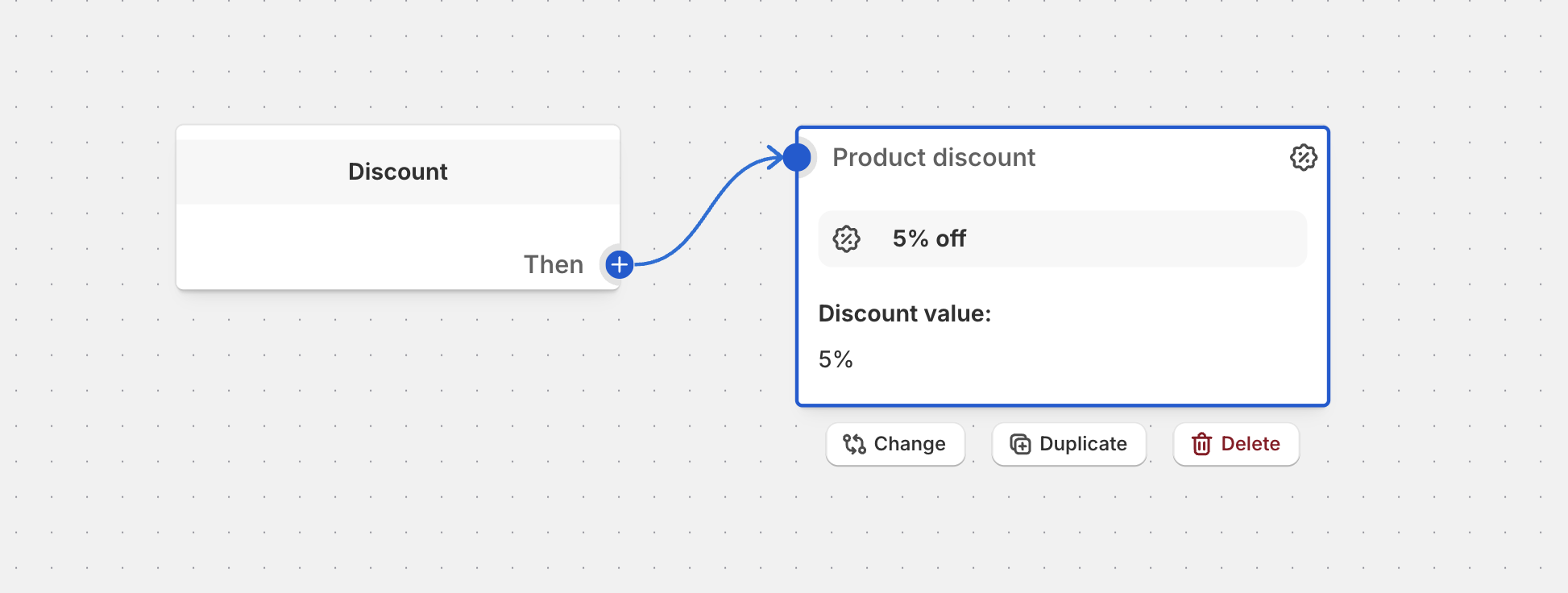
Basic Discount Settings
Configure the core settings of the Apply Product Discount block — type, value, message, strategy, targeting, and display.
Overview
The Apply Product Discount block is the workhorse of Function Studio discounts and promotions. It defines how a discount is calculated, which cart lines it applies to, and what message the customer sees.
- Percentage-off sales — storewide or category-level percentage discounts
- Dollar-off promotions — fixed amount off individual items or the whole cart
- Bundle pricing — “3 for $50” style fixed-price bundles
- Tiered and quantity-limited discounts — combine with quantity logic for more advanced rules
- Dynamic pricing — drive values from metafields or attributes
Setup
Open your discount or promotion function
Navigate to the flow you want to edit in Function Studio
Add the block
Click Add Action and choose Apply Product Discount
Connect inputs
Wire any upstream Define Cart Line Groups blocks you want this discount to target
Configure settings
Set discount type, value, message, and other options described below
Settings
Discount Type
Required
Selects how the discount value is interpreted. Three options are available — Fixed Amount, Percentage, and Fixed Price — each described below.
Fixed Amount
Takes a specific monetary amount off eligible items. Use when you want a flat dollar-off message like “Save $10”.
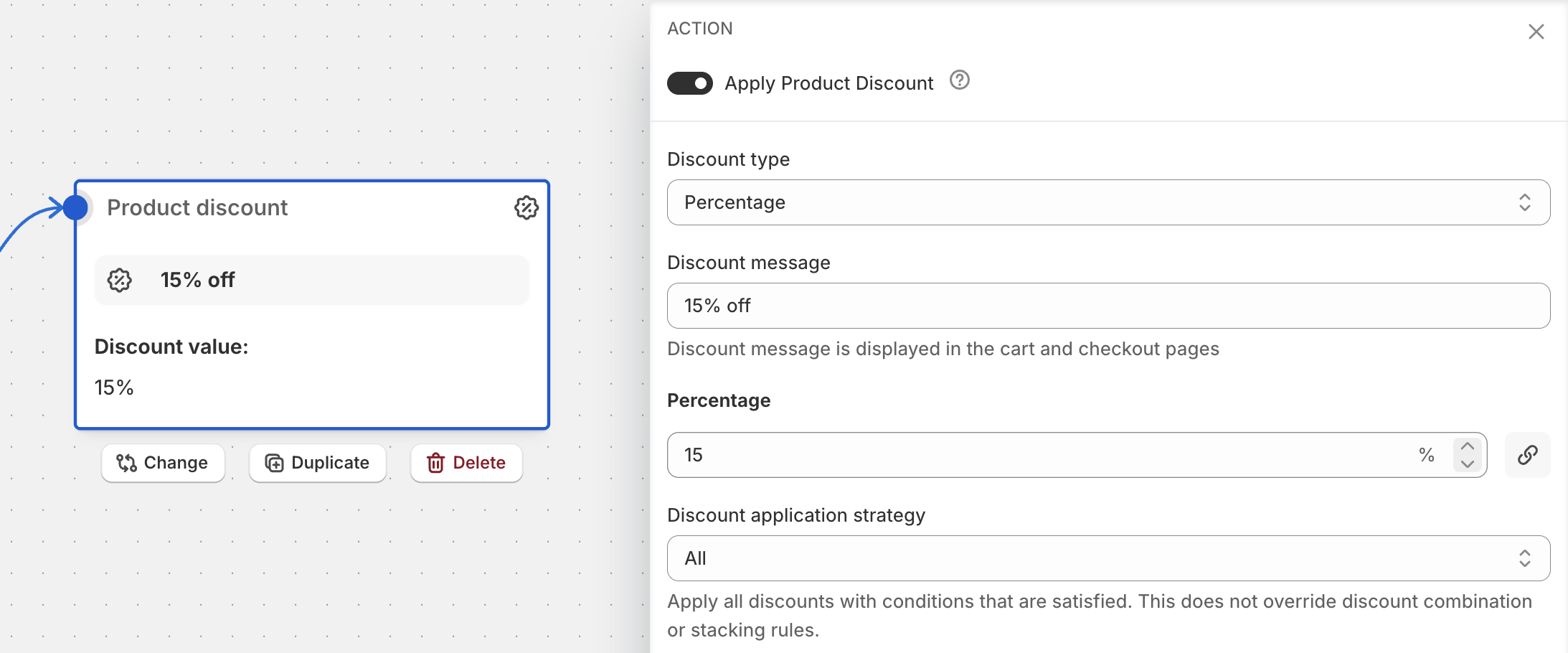
Percentage
Applies a percentage reduction to eligible items. Use for storewide sales, category discounts, or any promotion where savings should scale with purchase size.
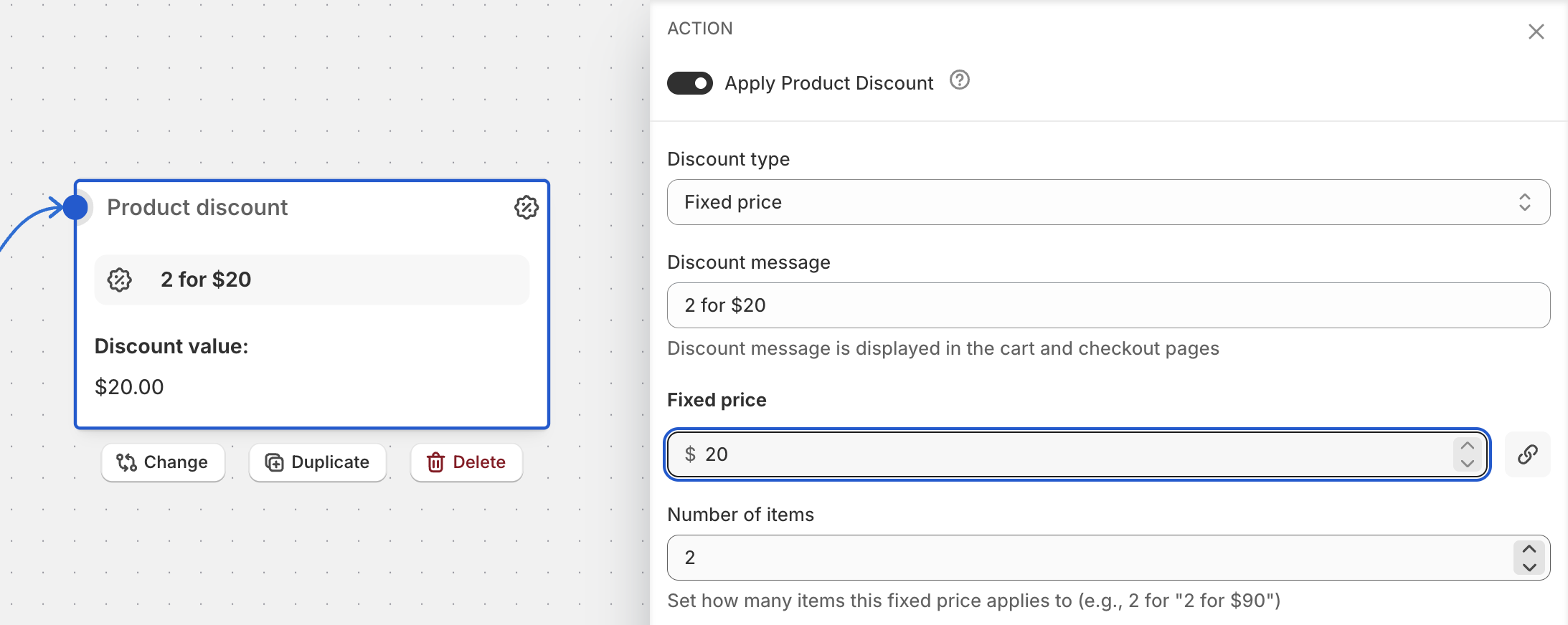
Fixed Price
Sets a bundle price for a specific number of items — for example, “3 for $50”. Customers pay the bundle price for complete sets only; extra items are charged at regular price.
Applies to each item
Optional — Fixed Amount only
When enabled, the fixed amount is taken off each eligible cart line. When disabled, the amount is split across eligible lines so the total reduction equals the configured value.
Examples:
$5with Applies to each item on → every matching item is $5 cheaper$20with Applies to each item off → $20 total is split proportionally across matching items
Discount value
Required
The numeric value of the discount. Meaning depends on the selected type:
- Fixed Amount — the currency amount (e.g.
10= $10) - Percentage — a value between 0 and 100 (e.g.
25= 25% off) - Fixed Price — the total price paid for the bundle (e.g.
50= $50 for the bundle)
This field supports Linked Fields — connect it to a metafield, cart attribute, line property, or upstream block output for dynamic per-product values. See Metafield Discounts for end-to-end examples.
Number of items
Required — Fixed Price only
How many items make up one bundle. For “3 for $50”, set this to 3. If the customer adds more than the bundle size, extra items are charged at their regular price until another complete bundle forms.
Discount message
Required
The message shown to the customer at cart and checkout when the discount applies. Clear, specific messaging improves conversion and reduces support tickets.
Dynamic placeholders are supported — see Message Placeholders below.
Discount application strategy
Required
Controls how Shopify chooses between discount actions when more than one could apply to the same cart. See Application Strategy for the full breakdown of the three options.
Apply to cart line groups
Optional
Restricts the discount to specific cart line groups defined earlier in the flow with a Define Cart Line Groups block. Leave empty to apply to all cart lines.
Tip
To target specific products, collections, or tag-based selections, define them upstream with Define Cart Line Groups and reference the group here. See Cart Line Groups.
Quantity limit
Optional
Restricts the discount to a specific number of items, with several strategies for how the limit is counted. See the dedicated Quantity Logic page for full details.
Advanced settings
Optional — Percentage only
Unlocks base-price overrides used for metafield-driven pricing. See Metafield Discounts for the full reference, including Discount base price and Calculate target price from base field.
Display on product page
Optional — Promotions only
When enabled, the storefront shows crossed-out original prices and the discounted price on the product detail page. Requires the Function Studio app embed to be enabled in the theme.
Display on collections page
Optional — Promotions only
When enabled, crossed-out original prices and discounted prices are shown on collection listing pages.
Note
Display settings only appear for Promotion flows. Discount-only functions don’t render storefront UI — merchant-configured storefront theme handles the display.
Linked Fields
Most inputs on the Apply Product Discount block — Discount type, Discount value, Discount message, and the Quantity field — show a small link icon next to the input. Clicking it replaces the static value with a reference to a dynamic source resolved at runtime.
Available Sources
- Metafields — product, variant, customer, company, or shop metafields
- Cart attributes —
cart.attribute.<key>, useful for values set by apps or the storefront - Line properties — per-line
properties._keyvalues, common with bundle builders and customization apps - Upstream node outputs — numeric results from Count Items, Sum Values, Max, or Tiers blocks earlier in the flow
When to Use Linked Fields
- Different products need different discount percentages or amounts (see Metafield Discounts)
- The discount value is derived from cart contents — for example, a Sum Values block totals a loyalty-points attribute and feeds it into Discount value
- A bundle builder app writes the effective quantity or bundle price onto cart line properties, and the discount reads them back
- The discount message needs to include a value set elsewhere (e.g. a campaign code from a cart attribute)
Behavior
- When a field is linked, items that don’t resolve the referenced source are skipped — they don’t receive the discount
- Linked numeric fields expect positive numeric values; non-numeric or missing values cause the line to be skipped
- Placeholders like
{{percentage}}and{{amount}}still work with linked values and reflect the actual computed discount per item
Application Strategy
When a cart qualifies for multiple discount actions in the same function, the strategy decides which ones actually apply.
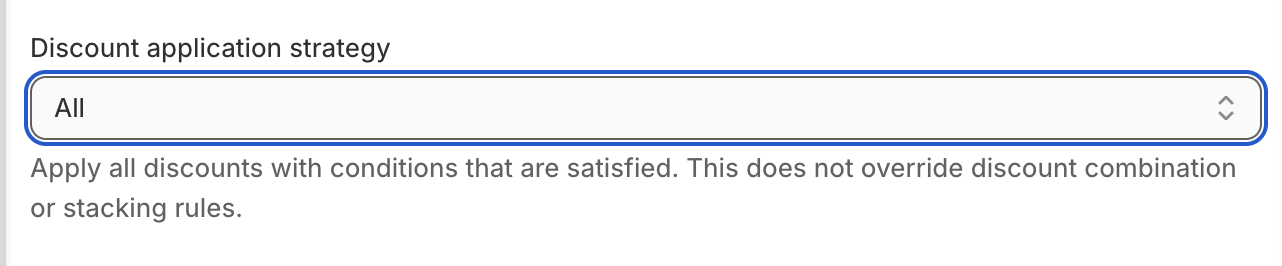
All
Apply every discount whose conditions are satisfied. Best for stackable loyalty programs or combinable offers.
Warning
All can stack aggressively. Monitor actual discount amounts after launch to make sure you’re not over-discounting.
First
Apply only the first qualifying discount in flow order. Best for controlled, priority-based promotions — for example, “VIP 25% off” takes precedence over “Summer sale 15% off”.
Maximum
Apply whichever single discount produces the largest reduction. Best for customer-friendly setups where the customer should always get the best available deal.
Message Placeholders
The discount message supports placeholders that are replaced with calculated values at runtime.
{{percentage}}
Renders the effective discount percentage, formatted like 20%. Works with all discount types — for fixed amount and fixed price discounts, Function Studio computes the equivalent percentage from the cart state.
Examples:
Save {{percentage}} on summer items→Save 20% on summer itemsBundle deal: {{percentage}} off when you buy 3→Bundle deal: 15% off when you buy 3
{{amount}}
Renders the monetary discount amount with proper currency formatting — $50, €25, 50CAD, etc. Falls back to USD formatting if currency information is unavailable.
Examples:
Get 3 items for {{amount}}!→Get 3 items for $50!Special bundle price: {{amount}}→Special bundle price: €75
Use {{amount}} for fixed price bundles and metafield-driven amounts where the absolute value is the clearest thing to show.
Examples
20% Off a Category
Typical storewide or category percentage sale.
Type
Set Discount type to Percentage
Value
Enter 20
Target
Set Apply to cart line groups to your “Summer” group
Message
Enter {{percentage}} off all summer items
$10 Off Order
A flat dollar-off promotion split across all qualifying items.
Type
Set Discount type to Fixed Amount
Value
Enter 10
Applies to each item
Leave off — the $10 will split proportionally across matching items
Message
Enter Save $10 on your purchase
3 for $50 Bundle
A fixed-price bundle deal on t-shirts.
Type
Set Discount type to Fixed Price
Value
Enter 50
Number of items
Enter 3
Target
Set Apply to cart line groups to your “T-shirts” group
Message
Enter Any 3 t-shirts for {{amount}}
Best Practices
Choosing the Right Type
| Goal | Recommended Type |
|---|---|
| Flat savings message | Fixed Amount |
| Scales with purchase size | Percentage |
| Multi-buy promotions | Fixed Price |
| Storewide sale | Percentage |
Strategy Selection
| Goal | Recommended Strategy |
|---|---|
| Best customer experience | Maximum |
| Controlled priority | First |
| Stackable rewards | All |
Writing Messages
- Be specific about what the discount applies to
- Use customer-friendly language, not internal jargon
- Prefer placeholders over hard-coded numbers so the message stays correct if the value changes
Troubleshooting
Discount isn’t applying
- Check that the upstream Define Cart Line Groups block actually matches items in the test cart
- Confirm the discount type matches how you entered the value (e.g.
20as percentage means 20%, as fixed amount means $20) - Verify the Discount application strategy isn’t suppressing this action in favor of another discount
Message shows {{percentage}} or {{amount}} literally
- Placeholders require the block to actually compute a value. If the discount never applies, the message isn’t rendered at all
- Check for typos — placeholders are case-sensitive and must be wrapped in double curly braces
Fixed Price bundle charges more than expected
- Confirm Number of items matches your bundle size
- Remember that extra items beyond a complete bundle are charged at regular price until another full bundle forms
Related Documentation
- Quantity Logic — quantity limits and per-group ordering
- Metafield Discounts — dynamic values and advanced base-price settings
- Cart Line Groups — targeting specific products
- Volume Tiered Discounts — tier-based pricing on top of this block