Signed cart data
Let your server sign the cart with HMAC, so that a buyer cannot change a configured price, a quantity or a line property in the browser. Works in validations, cart transforms and discounts.
Overview
A product configurator often keeps its result in line properties: the size, the material, the quote price. A buyer can change line properties in the browser before checkout. Signed cart data lets your server sign these values. Your function then checks the signature and decides what to do.
Use signed cart data to:
- Block checkout when a buyer changed the configured price or the configuration
- Expand a configured product into its components only when your server made the configuration
- Give a quote discount only to carts that your server signed
- Make a price quote expire on a date
Advanced plan required
Available for Function Types
- Validation
- Cart Transform
- Discount
How It Works
- Your configurator adds the product to the cart with the line property that holds the result, for example
_config - Your server calculates the signature of the cart lines with HMAC-SHA256 and a secret key that only your server and Function Studio know
- The storefront writes the signature to a cart attribute, by default
_fs_sig - At checkout, the function makes the same calculation. The condition Cart › Signature is valid is true only when the two values are equal
- Your flow uses the condition. For example, a validation blocks checkout when the signature is not valid
A change to a signed value in the browser gives a different result, so the signature is not valid. The buyer cannot make a new valid signature without the secret key.
Note
The signature only adds a condition. A function with a selected signature but no Check if block on Signature is valid checks nothing.
Warning
A cart without the signature attribute gives Signature is valid = False. Most carts in your store are normal carts without a signature. Check the signature only for carts that have a signed line, as in the validation recipe below.
Setup
Open the settings
In Function Studio, go to Settings and find Signed cart data. Click Create signature
Enter the signature details
Enter a name and a context string. Keep the default signature attribute _fs_sig, or enter your own
Select the signed fields
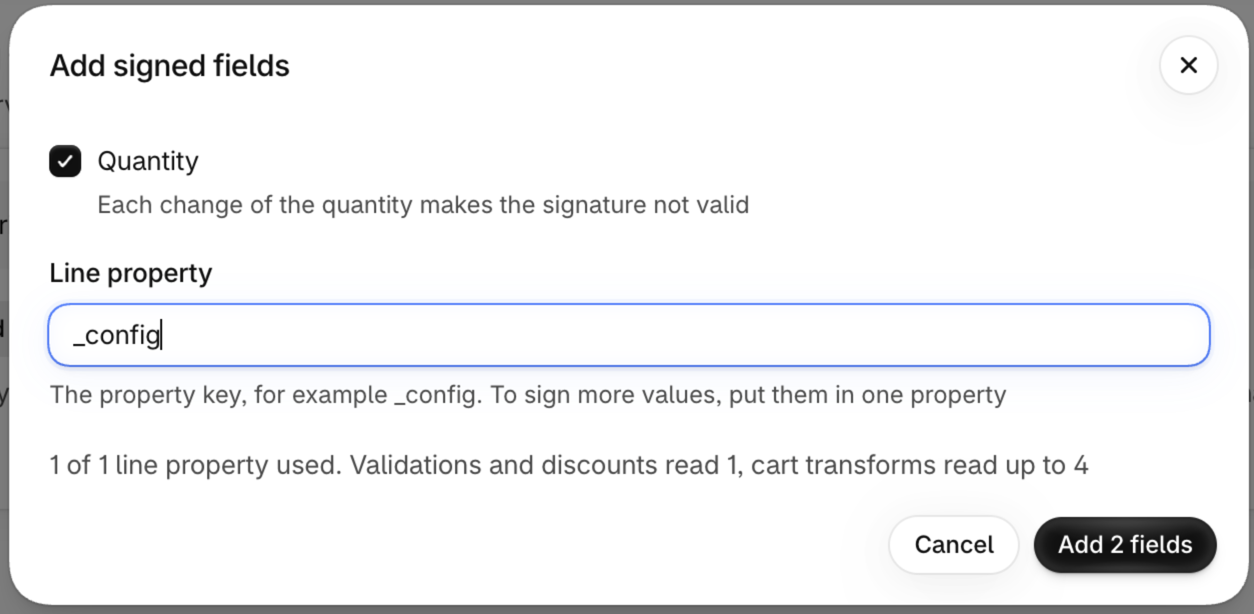
Click Add fields. Select Quantity if you want to sign it, and enter the key of the line property that holds the configurator result, for example _config
Select the expiry
Select Check a signed expiry date if your quotes must expire
Save and copy the key
Click Save. Copy the Secret key from the Save your signing key window and put it in the secret store of your server
Give the developer setup to your developer
Send the For your developer section of this page and the Code sample and test window of the signature
Select the signature in a function
Open a validation, cart transform or discount. In the Signed cart data card, select the signature
Use the condition in the flow
Add a Check if block with Cart › Signature is valid, and connect the action that you want. Then save the function

Settings
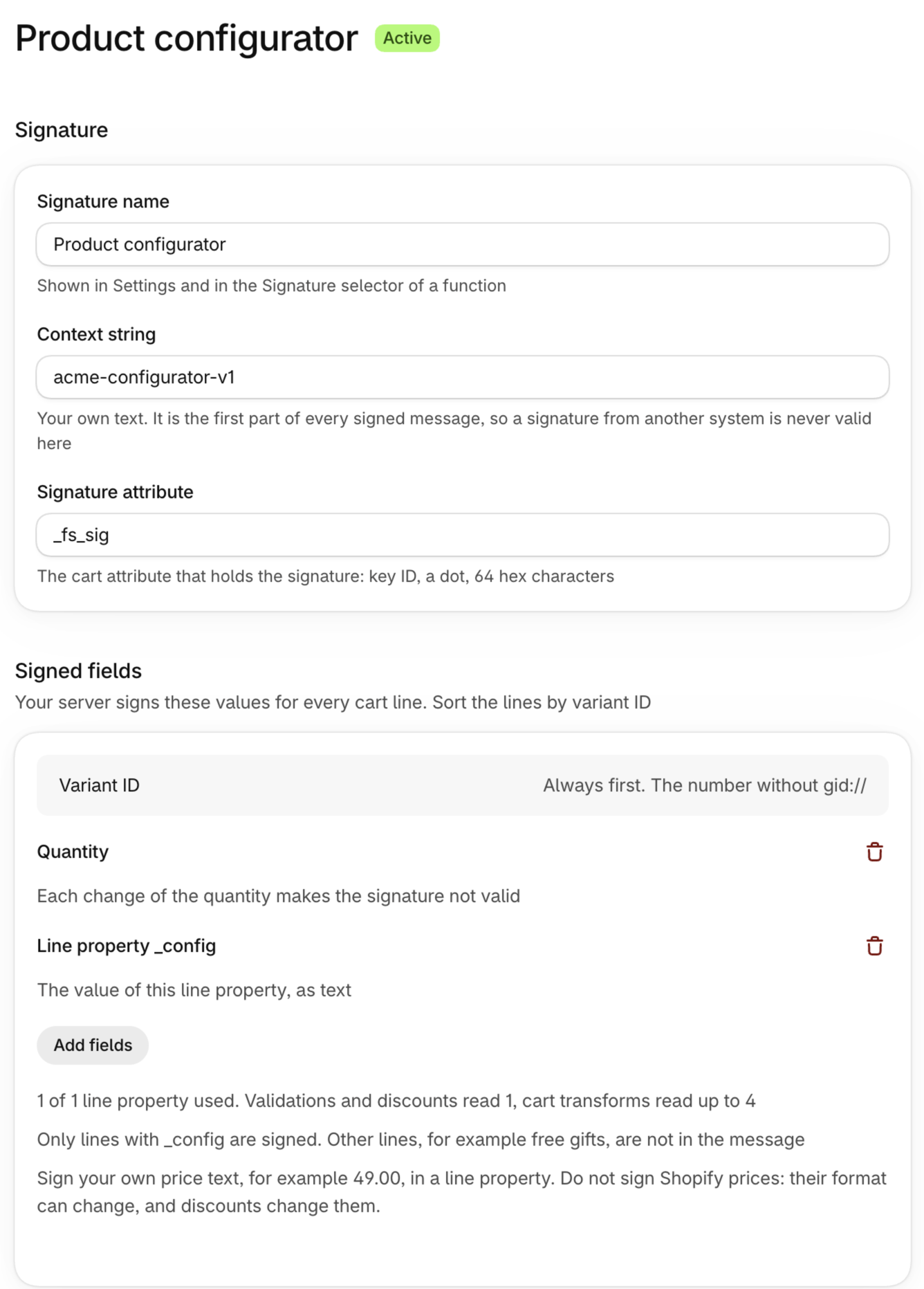
Signature name
Required
The name in Settings and in the Signature selector of a function. Use up to 60 characters.
Context string
Required
Your own text, for example acme-configurator-v1. It is the first part of every signed message, so a signature that another system made with the same key is never valid here. Use up to 200 bytes and no line breaks. Each signature in the store must have a different context string.
Warning
Your server must use the same context string, byte for byte. If you change it, every signature that your server makes is not valid until your developer changes the server code too.
Signature attribute
Required
The cart attribute that holds the signature. The default is _fs_sig. The name must start with _ and must not have spaces.
Signed fields
Required
The values that your server signs for each cart line. The signed lines are sorted, so the order of the lines in the cart is not important.
Variant ID
Always signed, always the first field. The number of the variant, without gid://shopify/ProductVariant/.
Quantity
Optional
Each change of the quantity makes the signature not valid, until your server signs the cart again. If buyers can change the quantity in the cart, do not sign it. Sign a maximum quantity in the line property and compare it in the flow.
Line property
Optional
The value of a line property, as text. The first line property is the marker: only the lines that have a value in it are signed. Other lines, for example free gifts or normal products, are not in the message, and they can change freely.
Warning
A line property that is not a signed field can be changed by the buyer. Sign each property that the flow reads.
Validations and discounts read 1 line property. Cart transforms read up to 4. To sign more values, put them in one line property, for example as JSON.
Tip
To protect a price, sign your own price text in a line property, for example 249.00 EUR. Do not sign Shopify prices: their format can change, and discounts change them. A signed price has no currency, so put the currency in the signed property too.
Expiry
Optional
Select Check a signed expiry date to make signatures expire. Your server adds the last valid day to the signature value: a.<signature>.2026-12-31. The date is the store time zone, and the precision is one day. A quote that is valid for 24 hours is valid through the next day.
Note
Only cart validations check the date. A cart transform or a discount uses the signed date to check the signature, but it does not compare the date with today. Use a validation to block expired quotes.
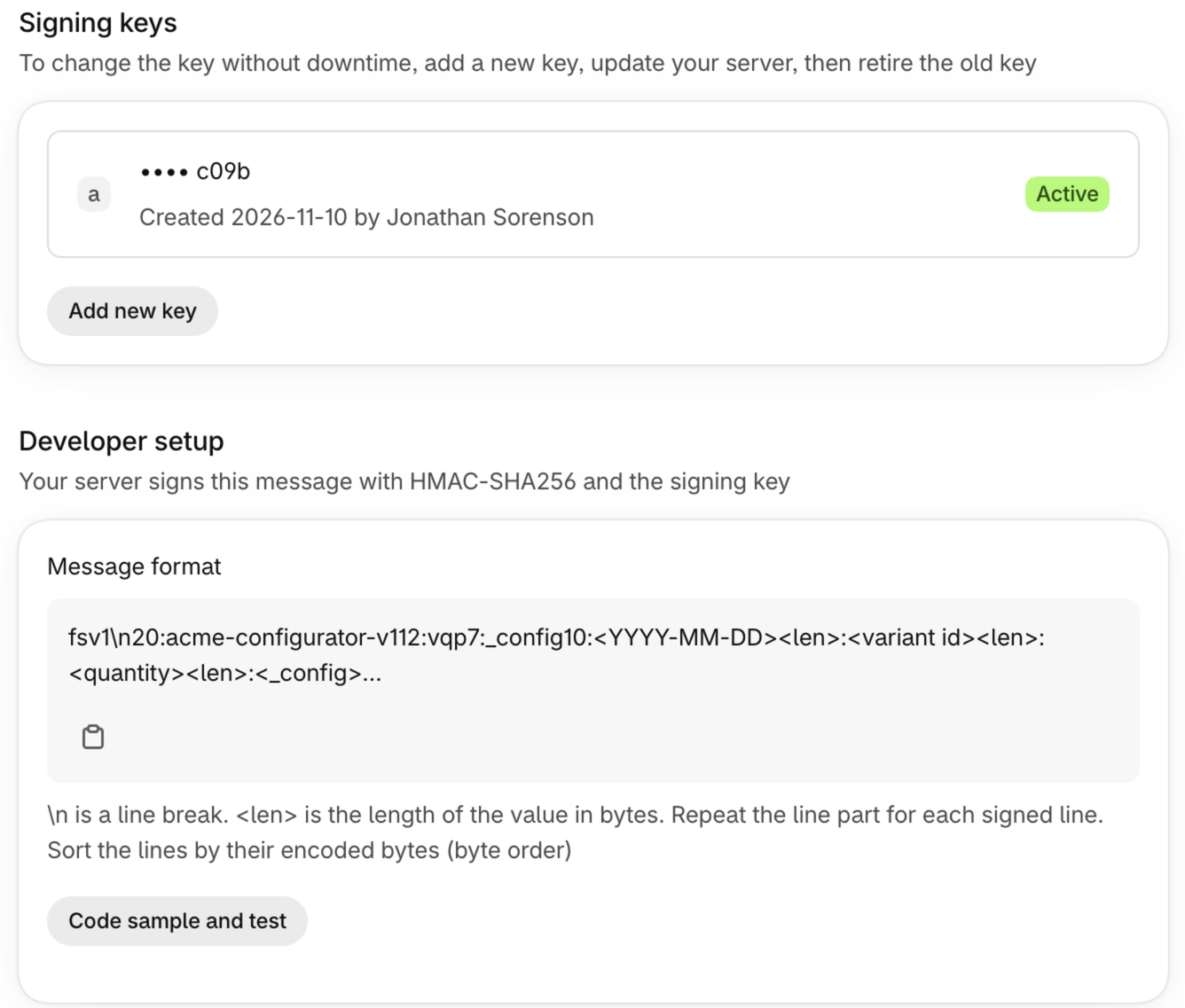
Signing keys
The first key is made when you save the signature. Function Studio shows the secret key one time only.
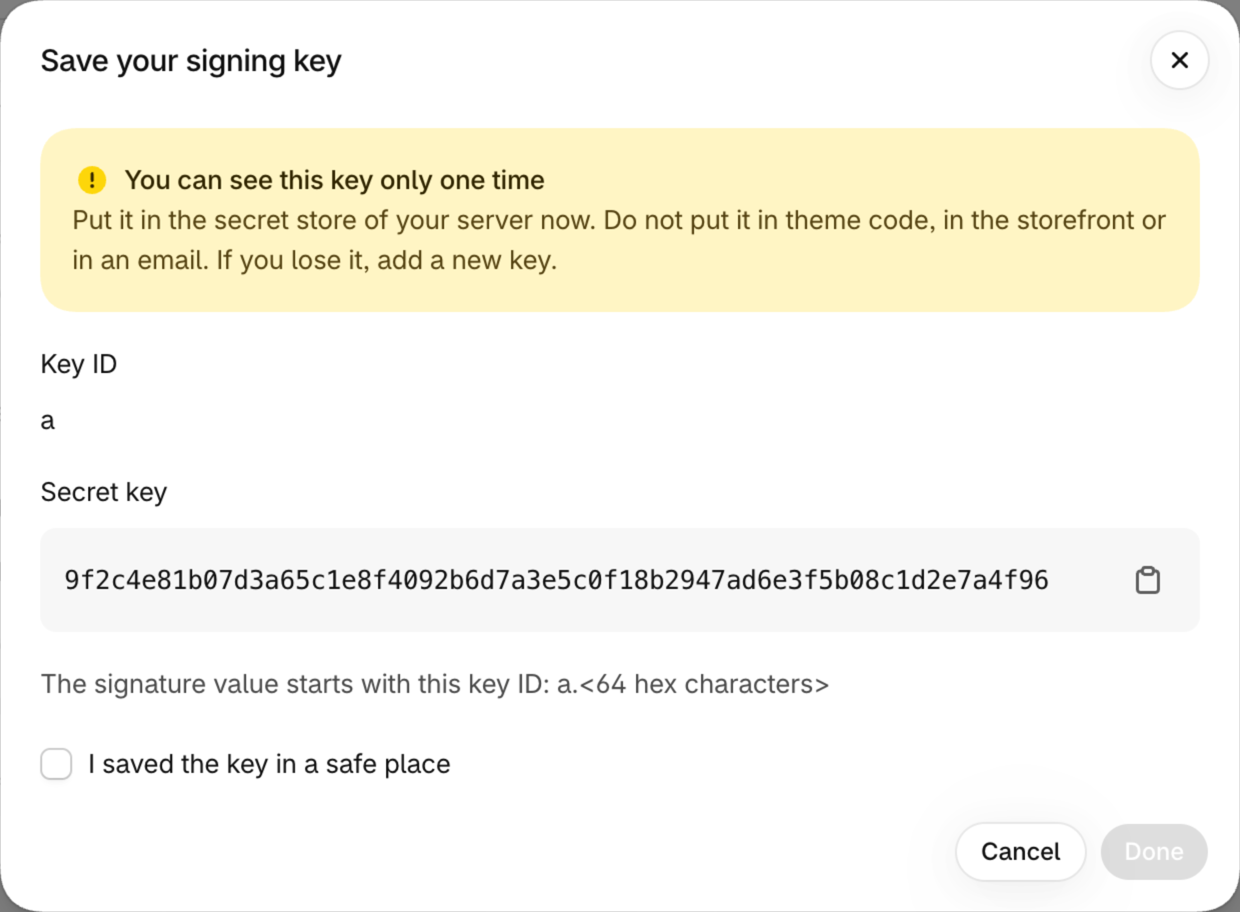
- Put the secret key in the secret store of your server. Do not put it in theme code, in the storefront or in an email
- The Key ID (for example
a) is the first part of the signature value. It tells the function which key to use - If you lose the key, click Add new key and update your server. You cannot see an old key again
A signature can have 2 active keys at the same time.
Change the key without downtime
Add a new key
Click Add new key on the signature page and copy the new secret key
Update your server
Your server signs with the new key ID and key. Signatures made with the old key stay valid
Retire the old key
Click the retire button of the old key. After this, signatures made with the old key are not valid
Use the Signature in a Flow
Select the signature in the Signed cart data card of the function. The card shows only after you create a signature in Settings. It shows the number of signed fields and if the function checks the expiry date. The selection adds the condition Cart › Signature is valid to the flow.
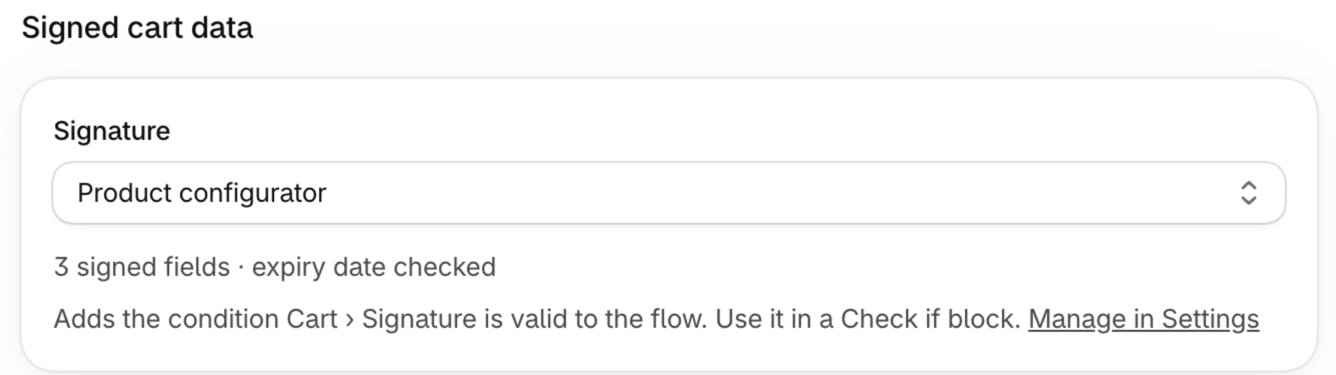
In the condition editor, Signature is valid has the values True and False. The block on the canvas shows them as Yes and No.
Block a changed cart (Validation)
Select the signature
Select it in the Signed cart data card
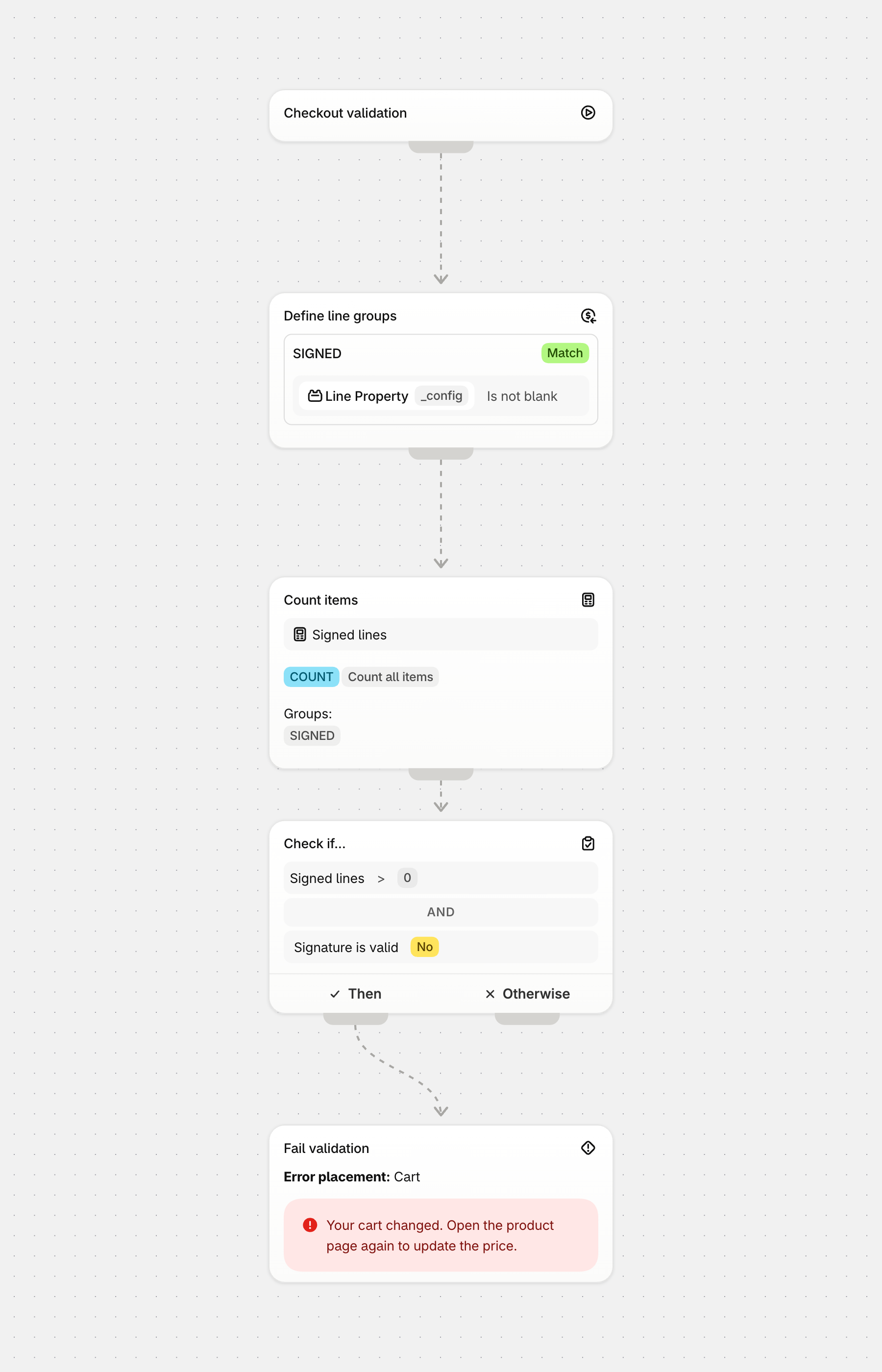
Find the signed lines
Add a Define Cart Line Groups block with a group SIGNED and the condition Line Property _config Is not blank. Use the marker property of your signature
Count the signed lines
Add a Count Items block on the group SIGNED, with the output variable signed_lines
Add the condition
Add a Check if block with two conditions: signed_lines greater than 0, and Cart › Signature is valid equal to False
Block the checkout
Connect a Fail validation action to Then, with a message such as “Your cart changed. Open the product page again to update the price.”
Result
A buyer who changed _config or the quantity cannot go to checkout. A cart that your server signed continues. A normal cart without configured lines continues too
Tip
Also select Block checkout if this function fails to run in the function status. Then an error in the function blocks the checkout too.
Expand only signed configurations (Cart Transform)
Select the signature
Select it in the Signed cart data card
Find the signed lines
Add a Define Cart Line Groups block with a group SIGNED and the condition Line Property _config Is not blank
Add the condition
Add a Check if block with Cart › Signature is valid equal to True
Expand the line
Connect Expand cart line into components to Then, and set Cart line groups to expand to SIGNED
Result
Only lines from your configurator are expanded. When the signature is not valid, nothing is expanded and the normal variant price applies. Set the variant price high
Discount only signed quotes (Discount)
Select the signature
Select it in the Signed cart data card
Find the signed lines
Add a Define Cart Line Groups block with a group SIGNED and the condition Line Property _config Is not blank
Add the condition
Add a Check if block with Cart › Signature is valid equal to True
Apply the discount
Connect Apply Product Discount to Then, and set Apply to cart line groups to SIGNED
Result
Only the signed lines of a cart with a valid signature get the discount
For Your Developer
Send this section to the developer who runs your configurator server. The signature page has a Developer setup card with the exact message format of your signature, and a Code sample and test window with ready code.
What your server does
Check the values
Your server calculates or checks the configuration and the price itself. Never sign a value that the browser sent without a check
Build the message
Build the message from the cart lines, as shown below
Sign the message
Calculate HMAC-SHA256 of the message with the secret key (64 hex characters = 32 bytes)
Return the value
Return the key ID, a dot and the 64 lowercase hex characters, for example a.77aa…b871. With expiry, add a dot and the last valid day: a.77aa…b871.2026-12-31
Write the attribute
The storefront writes the value to the signature attribute. Do this again after each cart change that your configurator makes
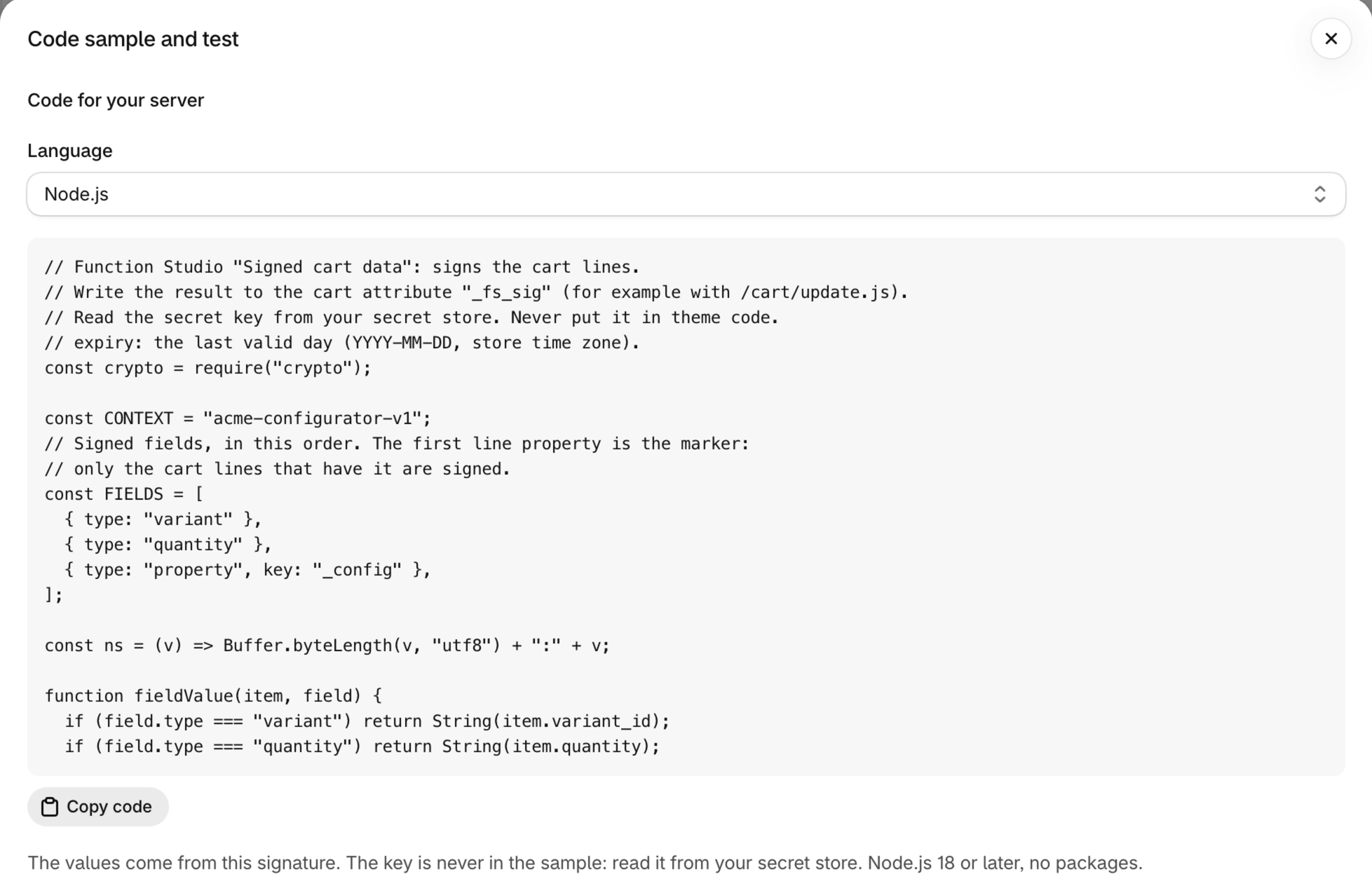
await fetch("/cart/update.js", {
  method: "POST",
  headers: { "Content-Type": "application/json" },
  body: JSON.stringify({ attributes: { _fs_sig: signatureValue } }),
});
Message format
fsv1\n<len>:<context><len>:<fieldspec><len>:<expiry> + one part per signed line
\nis a line break.<len>:<value>is a netstring: the length of the value in bytes (UTF-8), a colon, then the valuefieldspecnames the signed fields in order:vfor the variant ID,qfor the quantity,p<len>:<key>for each line property. For examplevqp7:_configcontextis your context stringexpiryis the dateYYYY-MM-DD, or empty (0:) when the signature has no expiry- Each signed line adds one netstring per signed field: variant ID, quantity (if signed), then each line property value. A missing property or a
nullvalue is an empty value (0:) - A line property value must be text. A number,
trueor an object is not valid: your server must refuse it, and the code samples do
Which lines are signed
- Only lines that are product variants
- With line properties: only lines where the first line property (the marker) is not empty
- With 2 or more line properties: a line that has a value in a later property but no marker makes the signature not valid
- Sort the encoded lines by their bytes (unsigned byte order; a shorter value comes first when one is the start of the other). This is not the numeric order of the variant IDs:
10:9876543210…comes before3:123…, because the length comes first
Example
A signature with the context string acme-configurator-v1, the fields Variant ID, Quantity and _config, and expiry. The cart has a configured line and a free gift without _config:
{
  "items": [
    { "variant_id": 44012345678901, "quantity": 1, "properties": { "_config": "W120 x H80 cm, oak, 249.00 EUR" } },
    { "variant_id": 44098765432101, "quantity": 1, "properties": {} }
  ]
}
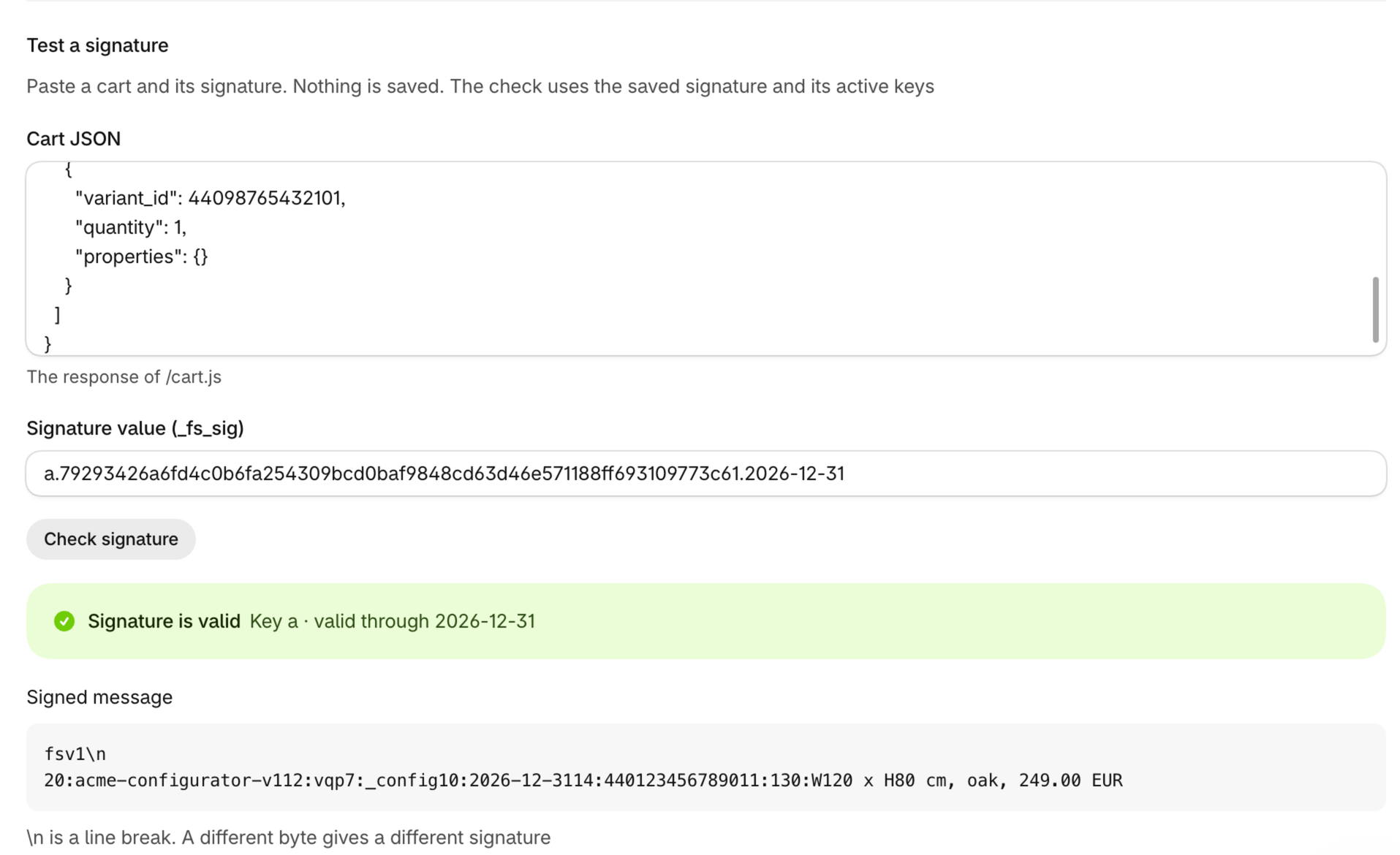
The signed message for the expiry 2026-12-31 is (\n is a line break):
fsv1\n20:acme-configurator-v112:vqp7:_config10:2026-12-3114:440123456789011:130:W120 x H80 cm, oak, 249.00 EUR
The free gift is not in the message, because it has no _config.
Code samples
Click Code sample and test on the signature page. The window gives code for Node.js, Rust, Java, PHP and Python. The code has the context string, the fields and the attribute of your signature. It never has the key: read the key from your secret store.
Test your signature
In the same window, paste the response of /cart.js and the signature value, then click Check signature. The test uses the saved signature and its active keys, and saves nothing. It shows if the signature is valid, the key that matched, and the signed message. Compare this message with the message that your server makes: one different byte gives a different signature.
Important Considerations
Note
Signed cart data is available on the Advanced plan and higher. If the store moves to a lower plan, the functions that use a signature keep working, but you cannot create or change signatures, or select a signature in a function.
Warning
Every change to the signed fields or the context string changes the message. Update the server code before you save such a change, or all live signatures become not valid.
- Function Studio keeps the secret keys encrypted on its server. Keys are never in exported logic, templates, versions or duplicated functions
- A function can check a signature only with a supported function input. The Signed cart data card shows an error when the input cannot check it. Select the signature before the first save of a new function, so the app can select a supported input
- The signature is per cart, not per line. A buyer can copy a valid attribute into a different cart that has exactly the same signed lines. The lines and the prices are still the signed ones
- A validation after a cart transform that expands signed lines is not supported. Check the signature in the cart transform itself
- Values that are not signed (other line properties, lines without the marker) can change freely. Sign each property that the flow reads
- Buy it now and Shop Pay buttons on the product page make a checkout without the cart attribute. Hide them on configured products, or the validation blocks these checkouts
- A cart change in checkout cannot get a new signature. The buyer must go back to the cart, where your storefront signs the cart again
- Expiry has a precision of one day in the store time zone, and only cart validations check it
Troubleshooting
The signature is never valid
- Use the Test a signature window with the real
/cart.jsresponse and the attribute value, and compare the signed message with the message of your server - Check that the context string and the field order are the same on your server
- Check the byte lengths: a character such as
äis 2 bytes in UTF-8 - Check that the encoded lines are sorted by their bytes, not by the variant ID as a number
- Check that each signed property value is text, not a number or
true - Check that the attribute name is exactly the signature attribute, including the
_
The test is valid, but checkout is blocked
- The storefront wrote the attribute before the last cart change. Write it again after each change your configurator makes
- The quantity is signed and the buyer changed it in the cart
- The expiry date is in the past in the store time zone
- The key that made the signature was retired
The function has no Signed cart data card
- Create a signature in Settings › Signed cart data first. The card shows only when the store has a signature
- Check that the store is on the Advanced plan or higher
- A function that a promotion manages does not show the card. The promotion owns its logic
The card shows an error about line properties
The signature needs more line properties than the function can read. Validations and discounts read 1. Put the values in one line property, or use a cart transform.
I lost the secret key
You cannot see a key again. Click Add new key, update your server, then retire the old key.